

Design & brand kits
Set organization and brand styles for newly generated Slides decks.
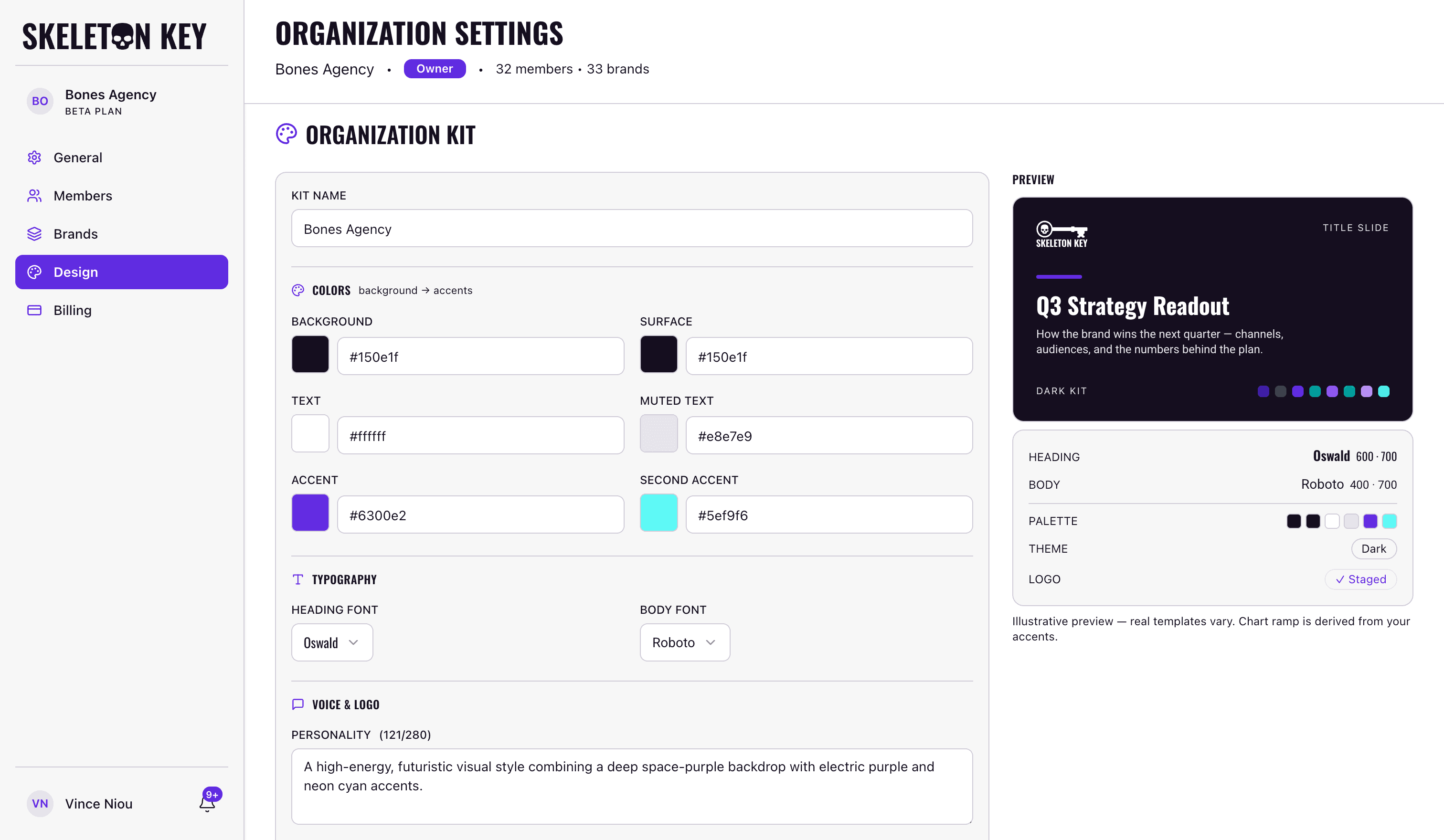
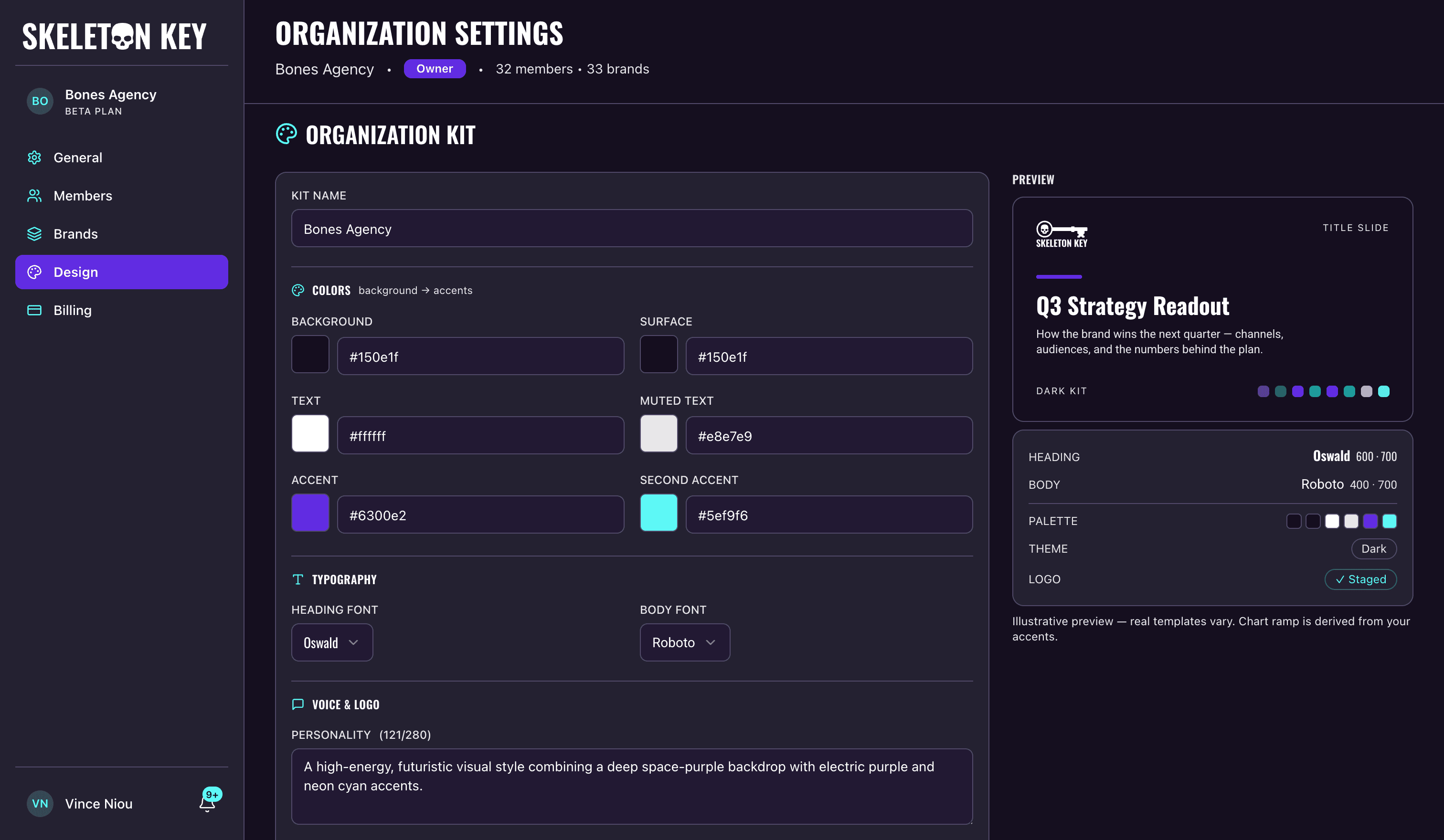
A brand kit controls the colors, fonts, logo, and visual personality used when Skeleton Key generates a slide deck. You can set one kit for the organization, add a kit for an individual brand, or keep the Skeleton Key style.
Prerequisite
Only organization Owners and Admins can create, edit, delete, or choose default kits. Members can view Design settings for brands they can access. Guests cannot open Organization Settings.
How Skeleton Key chooses a style
The Design page lists the platform style, the organization kit, and each brand's kit. The Skeleton Key style is always available and cannot be edited.
Each brand also has a Default deck style setting:
| Default | Style used for a new deck |
|---|---|
| Auto | Brand kit, then organization kit, then Skeleton Key |
| Skeleton Key | Skeleton Key |
| Org kit | Organization kit, with Skeleton Key as the fallback if that kit is later deleted |
| Brand kit | Brand kit, then organization kit, then Skeleton Key if a kit is later deleted |
You can still choose another available style while building a specific deck. That choice applies to the new deck only.
Create a kit
- 01
Open Design settings for your organization
Open Organization Settings, then select Design. The page shows the organization kit first, followed by the brands you can access and the style each brand uses by default.
- 02
Choose the organization or brand kit scope
Click Create kit under Organization kit to set a shared style for the organization. To create a style for one brand, find that brand under Brand kits and click Kit.
- 03
Start from brand material or enter the fields
For a new kit, you can extract a draft from a website, upload a PDF or PowerPoint file, or enter the fields yourself. Brand-level kits can also use a supported file already on that brand's Documents page.
Website and document extraction can fill colors, heading and body fonts, and a short personality note. Website extraction can also find a logo. A PowerPoint file can offer logo candidates from its slide masters, while a PDF does not provide a logo.
- 04
Review the extracted kit draft
Extraction fills the editor but does not save the kit. Check every color and font, choose the correct logo if candidates appear, and replace any field that does not match your brand. If you have already changed the form, Skeleton Key asks before replacing those unsaved fields.
- 05
Complete the kit and check its preview
Name the kit, set the background, surface, text, muted text, accent, and optional second accent colors, then choose heading and body fonts. You can add a personality note of up to 280 characters and upload an SVG or PNG logo. The preview updates as you edit.
Skeleton Key blocks saving when the main text does not meet the minimum contrast against the background. Lower contrast for accents, muted text, or a logo appears as a warning that you can review before continuing.
- 06
Save the completed brand kit
Click Save kit. Skeleton Key prepares the selected fonts and returns you to the Design page. The kit is now available to newly generated decks in its scope.
Uploaded brand files
For a brand-level kit, an uploaded PDF or PowerPoint file is also added to that brand's Documents page when it is 10 MB or smaller and contains readable text. Larger files can still be used for kit extraction, up to 100 MB, but are not retained there. Organization-level uploads are not tied to a brand, so they are not added to Documents.
Edit a kit or change a default
Return to Organization Settings → Design and click Edit next to an existing kit. You can change its colors, fonts, personality, or logo, then save it again. The website and document extraction choices appear only while creating a kit, so edits to a saved kit are made in the fields.
Use Default deck style next to a brand to change which style its Slides builder selects first. The setting takes effect on the next deck you create. It does not alter a deck that has already been generated.
Delete a kit
Open the kit, click Delete kit, then confirm. New decks fall back according to the brand's default setting. A brand kit falls back to the organization kit when one exists, then to Skeleton Key. Deleting the organization kit leaves Skeleton Key as the fallback.
Existing decks keep the colors, fonts, and logo that were packaged into them when they were generated.
Limits and considerations
- A kit applies to Slides. It does not change the Skeleton Key app theme or restyle other outputs.
- Website and document extraction produce a draft for review. They do not save automatically.
- Kit documents must be PDF or PowerPoint (
.pptx) files and can be up to 100 MB. Image-heavy or password-protected PDFs may fail to open. - PDF extraction cannot recover a logo. Upload an SVG or PNG logo separately.
- Heading and body fonts must come from the supported Google Fonts catalog shown in the picker. Custom, uploaded, and self-hosted font files are not supported. If extraction finds a font that is not listed, choose an available alternative before saving.
- Logo files must be SVG or PNG, no larger than 1 MB, and no wider or taller than 4,096 pixels for PNG files.
- A kit without a logo produces decks without a wordmark.
Last updated: 2026-07-13