

Media Plan
A unified channel and spend plan organized into Overview, Charts, and Plan Details sections, revised by running Refine.
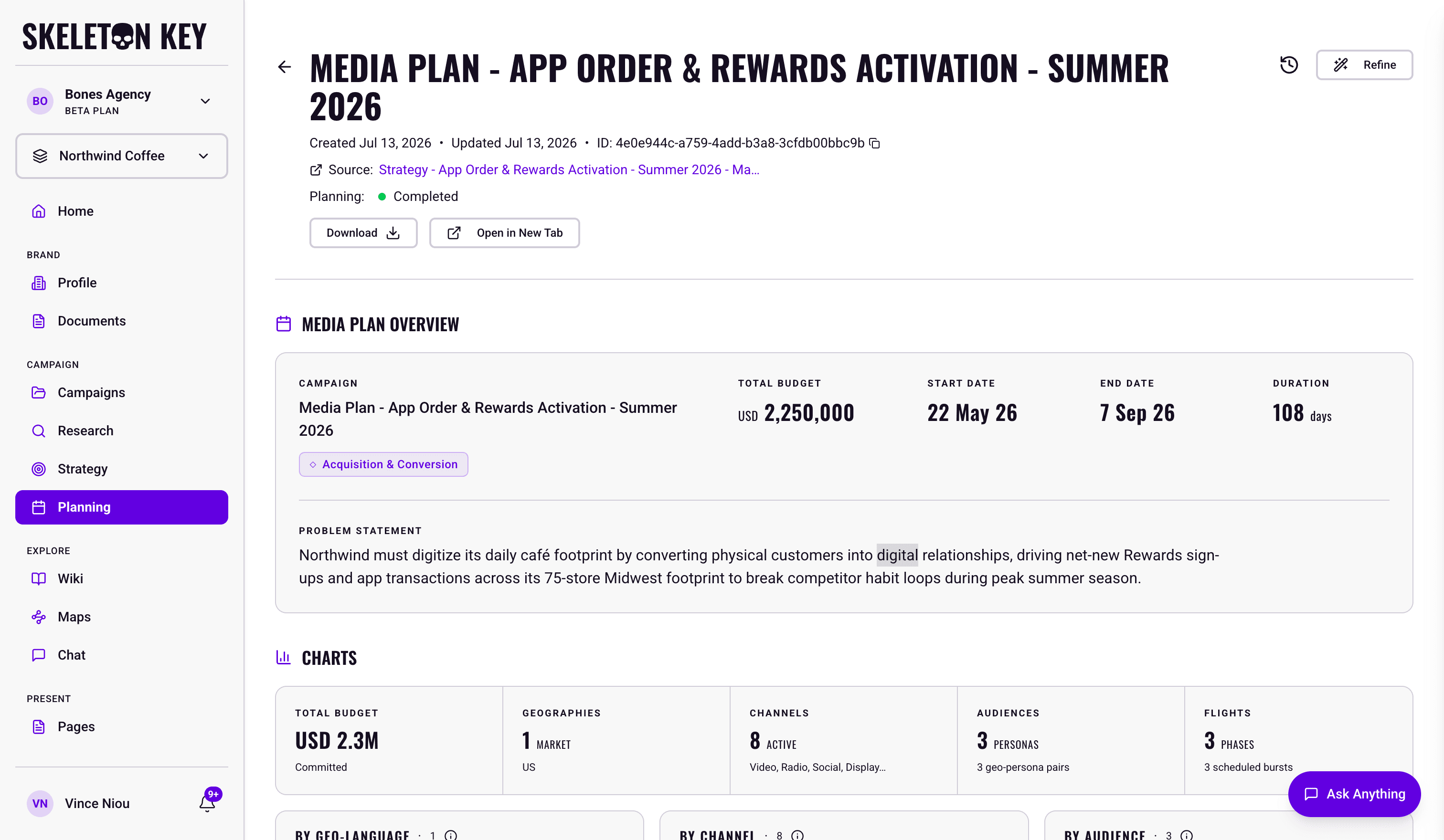
The Media Plan is where Skeleton Key turns Strategy into an executable channel and spend plan. Unlike Research or Strategy, it is a single unified document rather than a set of agent outputs. Three sections sit on the same page, all views into the same plan:
- Overview: campaign label, strategic focus, budget, dates, duration, and problem statement.
- Charts: a five-stat summary strip plus five visualizations of how the plan's budget is distributed, with cross-filtering between charts and Plan Details.
- Plan Details: seven tabs (geo, flighting, channels, audiences, URLs, goals, pillars) where the actual plan data lives.
What it produces
A single Media Plan document with the three sections above. The plan exports to Excel and Markdown. A Source link in the page header points back to the upstream Strategy run, alongside the request name, created/updated timestamps, and any attached Documents. See Exports & sharing for format-specific behavior.
Attached documents are read the same way as in Research and Strategy: one run reads about 600,000 characters of text, a trimmed file is reported on the plan page, and a run that stops on its documents tells you why. There is no rerun action on a Media Plan, so after a document problem you start a new plan. Standing rules on the Guidelines page take precedence over attached documents. See Documents.
How it fits in the workflow
The Media Plan is always campaign-scoped. It requires a completed Brand Profile, a Campaign brief, a completed Research run, and a completed Strategy run on the same campaign.
The full dependency order is: Brand Profile → Campaign → Research → Strategy → Media Plan. Each phase becomes available once the previous one is complete. The product enforces this automatically.
Refining and version history
The Media Plan is read-only on the page. You revise it by running Refine: the page header shows a Planning status line for the run itself (Completed once the plan has generated, or Running, Failed, or Cancelled) next to the Refine button. Click Refine to open a panel, describe what should change in plain English, and submit. The planning agents re-run with your feedback and land a new version of the plan on the same page, leaving the previous version in history.
Refine revises what the planning agents own: audiences, benchmarks, channel mix, budget split across channels, flighting, and tactics. Refine will accept a request to change the total budget, the target geographies, or the campaign objective, but the plan is then working against a brief that says otherwise. For changes on that scale, update the campaign and generate a new Media Plan. If you want to hand-edit the numbers, take the Excel export instead.
While a refine is running, the plan sections are replaced by a "Refining your media plan" card, and the Download, Open in New Tab, Refine and version-history controls are disabled until it finishes. You can cancel a refine in flight; the previous plan comes back if you cancel or the refine fails.
Every refine creates a new version. The clock icon in the page header opens version history, where you can hover any entry for a relative timestamp and restore prior versions in place. Detailed mechanics live in Refine.
Sharing and exports
The Download button supports Excel and Markdown. Open in New Tab opens a read-only standalone view at /view/media-plan/[id]. Both are disabled while a refine is running. Format coverage and caveats live in Exports & sharing.
If you're new to Skeleton Key, the Quickstart walks through the end-to-end flow.
Overview
The plan-level summary fields: campaign label, strategic focus, budget, dates, duration, and problem statement.
ReadCharts
A five-stat summary strip and five cross-filtered visualizations of how budget is distributed.
ReadPlan Details
The seven tabs where the plan data lives: geo, flighting, channels, audiences, URLs, goals, and pillars.
ReadLast updated: 2026-09-22