

Slides
Turn a research, strategy, or brand output into a presentation-ready deck.
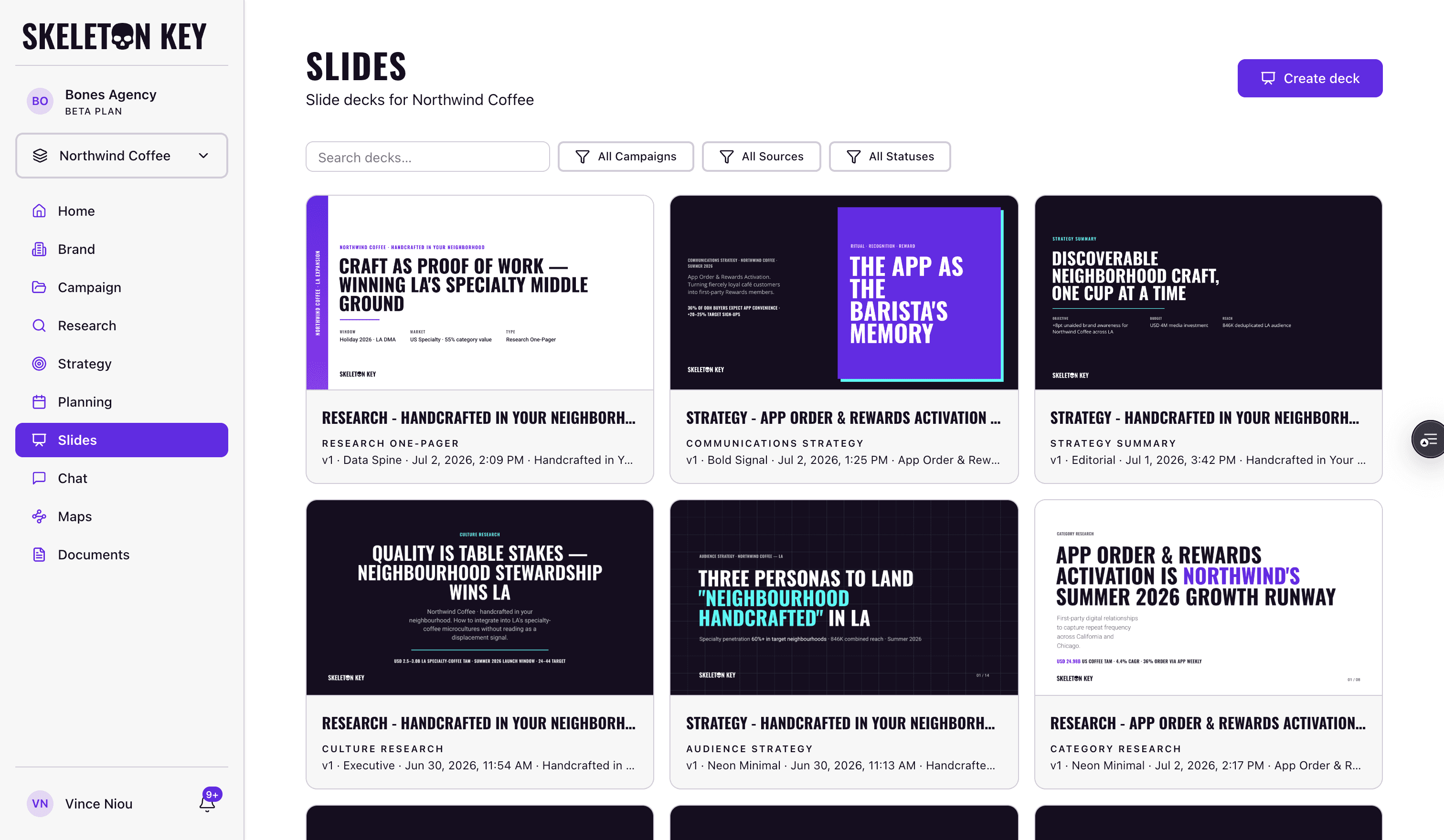
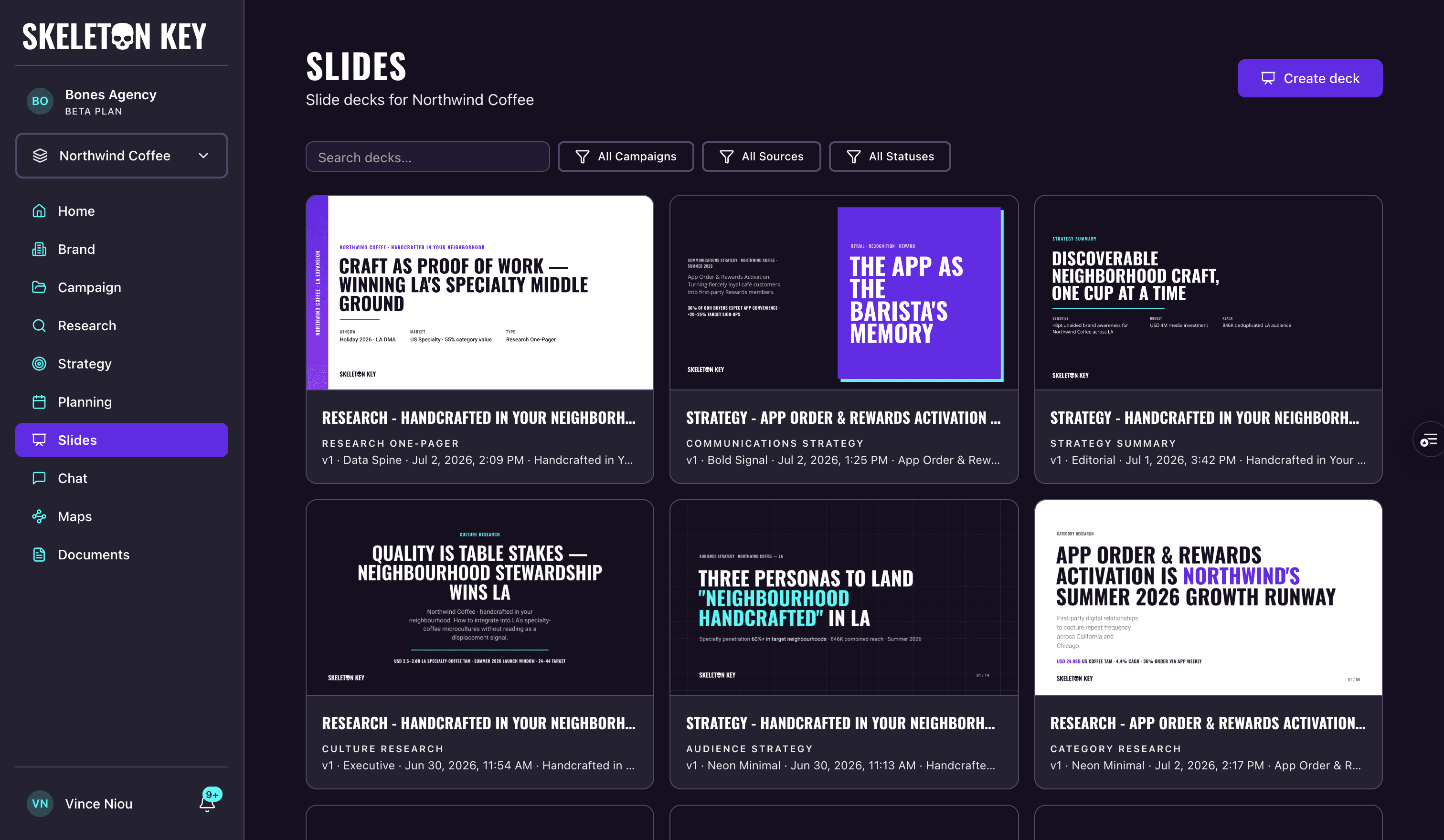
Slides turns a finished output into a presentation-ready deck. You pick an output you've already generated, choose how it should look, answer a few questions about the audience and length, and Skeleton Key writes the slides for you. A deck takes about two to four minutes and opens in a full-screen viewer you can page through, download, or print.
What it does
Slides reads one of your completed outputs and composes it into a slide deck: a title slide, section slides, charts and tables where the source has them, and speaker notes if you ask for them. The result is a self-contained file you can present from the browser, download as HTML, or print to PDF.
You can build a deck from any of Skeleton Key's long-form written outputs: the five research analyses and the reports that synthesize them, the four strategist outputs and the Strategy Summary, and the Brand Profile. The Media Plan isn't a deck source, since it's a set of tables rather than a written narrative.
Where to start one
Every eligible output carries a Slides button in its header. You'll find it on:
- each analyst tab and the Research Reports on the Research page,
- each strategist tab and the Strategy Summary on the Strategy page,
- the Brand Profile on the brand page.
There's also a Create deck button on the Slides library at /slides, which starts the wizard from a blank source picker. The button on an output is disabled with a tooltip while that output is still generating, since there's nothing to build from yet.
Building a deck
The builder walks through a short wizard. Starting from an output's Slides button skips the first step, because the deck is already tied to that output; starting from Create deck in the library adds the source-picker step up front.
- 01
Pick the source output
Only when you start from the library. Filter by campaign, then choose one eligible output. Each option shows when it was generated, so you can tell versions apart.
- 02
Choose the deck's look
If the brand has an organization or brand kit, choose an available Style first. The brand's default is selected when the builder opens, and you can override it for this deck. Then pick one of the five templates (described below) and a density: Presentation-first for sparse, spoken-to slides, Reading-first for slides that stand on their own, or Balanced in between.
The Skeleton Key style lets you choose a Light or Dark theme. A custom kit uses the theme set by its background color, so the theme appears as read-only text in the builder.
- 03
Answer a few questions about the deck
Choose the audience (internal working session, cross-functional, exec readout, agency or client briefing, or "Decide for me") and the length (Concise at around 8 slides, Standard around 14, In-depth around 20, Comprehensive at 25 or more, a custom number from 1 to 40, or "Decide for me"). Under More options you can also deselect any of the source's sections you don't want, add a one-line tone note, and toggle on speaker notes.
- 04
Review and generate the deck
The last step lays out everything you chose. Click Generate Slides to start the build. It takes about two to four minutes, and it's safe to close the window since you'll get a notification when the deck is ready.
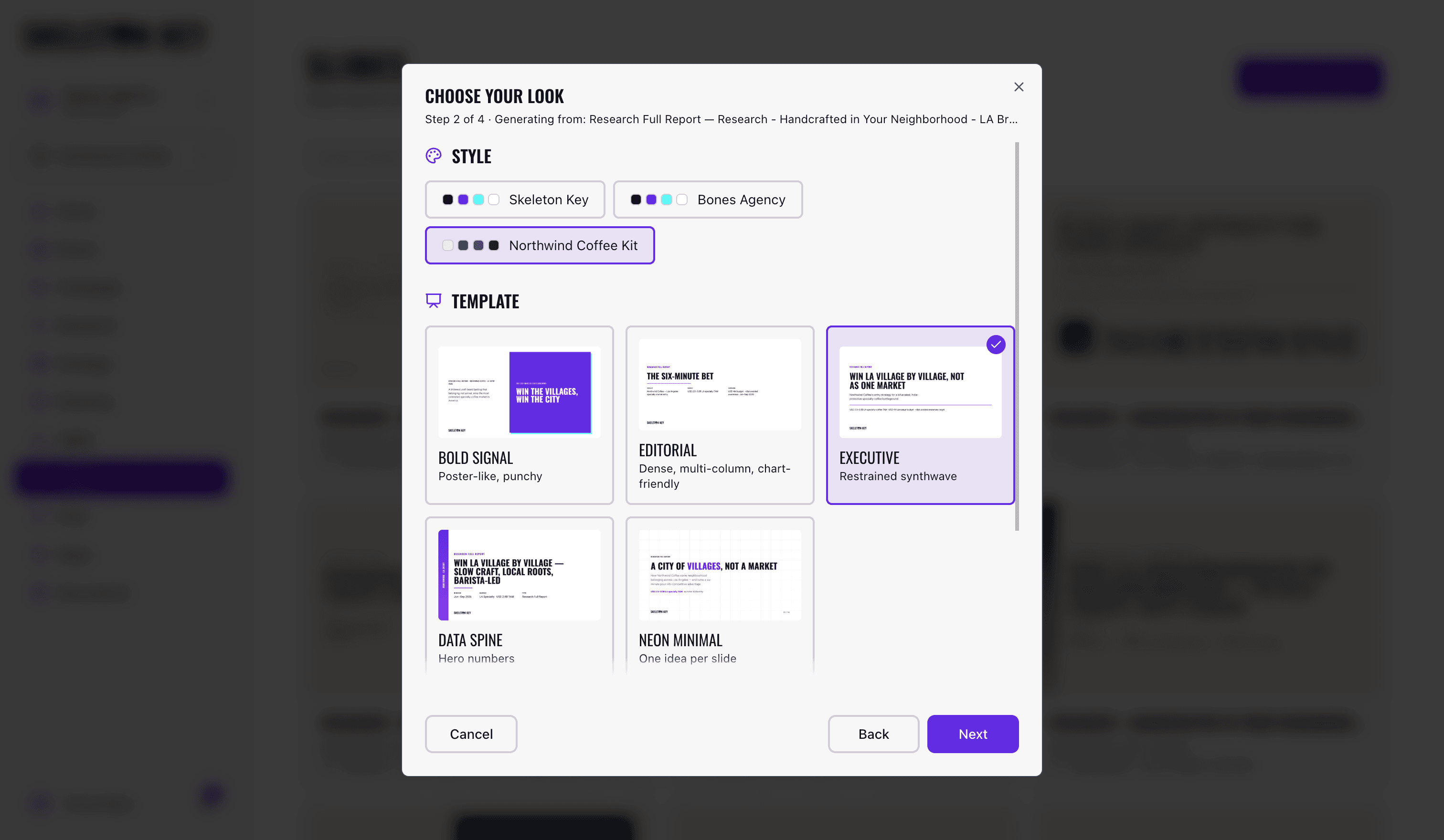
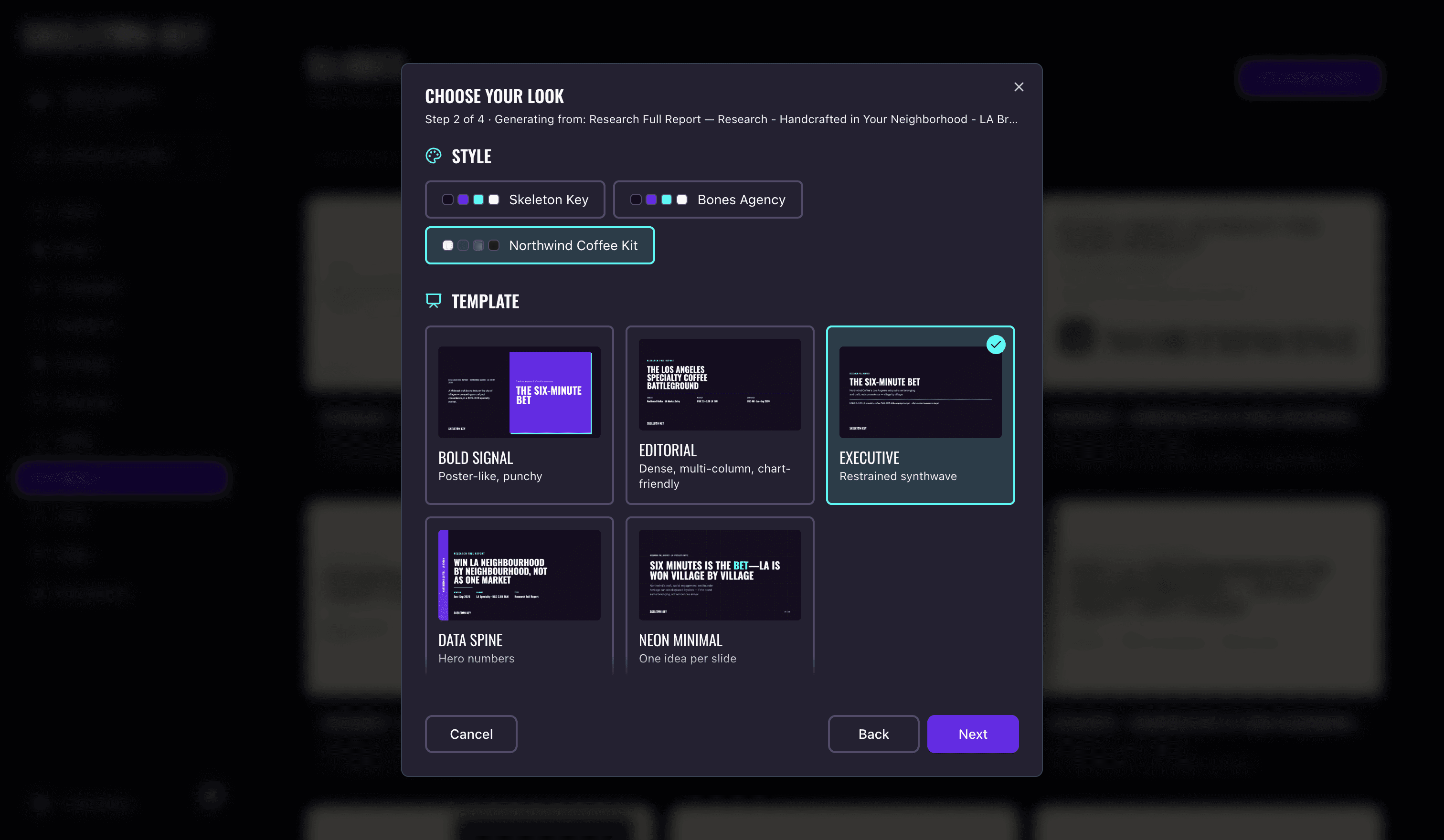
Templates
There are five templates, and each works with the Skeleton Key style or a custom kit. For the Skeleton Key style, light themes lead with purple accents and dark themes with cyan. A custom kit replaces those colors and fonts with its own, uses its saved light or dark theme, and adds its logo when one has been provided.
The template thumbnails stay in the Skeleton Key style, even when you select a custom kit. The generated deck uses the selected kit.
| Template | Feel | Best for |
|---|---|---|
| Bold Signal | Poster-like, punchy | Pitches and campaign energy |
| Editorial | Dense, multi-column, chart-friendly | Analytical reports |
| Executive | Restrained | Leadership and client readouts |
| Data Spine | Hero numbers | Goals and measurement |
| Neon Minimal | One idea per slide | Vision and strategy narrative |
Brand kits and default styles
Organization Owners and Admins manage kits under Organization Settings → Design. An organization can have one shared kit, and each brand can have its own kit. See Design & brand kits for setup instructions, extraction options, and upload limits.
The Slides builder starts with the brand's default style. Auto chooses the brand kit when one exists, then the organization kit, then Skeleton Key. An Admin can instead set the brand to start with Skeleton Key, the organization kit, or the brand kit. If only the Skeleton Key style is available, the Style choices stay hidden.
Choosing another style in the builder changes that deck only. Skeleton Key packages the selected colors, fonts, and logo into the generated file, so later kit edits do not restyle it.
Viewing a deck
A finished deck opens full-screen at /slides/[id]. Use the left and right arrow keys to move between slides. The line under the title shows the brand, the template, and when the deck was generated, in your local time.
The toolbar gives you a few actions:
- Download .html saves the deck as a single self-contained file, with its styling and interactivity included, that opens in any browser.
- Print / PDF opens your browser's print dialog, which is how you get a PDF. Both download and print use the theme the deck was built in.
- Notes appears when you asked for speaker notes, and toggles a panel showing the notes for the current slide.
Your deck library
The Slides library at /slides lists your decks, one card per deck. Each generation is its own deck, so generating again from the same output, or retrying a failed one, produces a new card rather than replacing the old one. Cards show the deck name, the source it came from, the template, and the time, and a thumbnail once one has been captured.
Filter the library by search text, campaign, source type, and status (Ready, Generating, or Failed). A card that's still building shows a spinner and how long it's been going; a completed card whose source has since changed is marked "Source updated since this deck"; a failed card offers Retry. Finished decks also show up in the Recent Activity feed on your home and campaign pages, tagged with a Slides badge and linking straight to the deck.
Limits and considerations
- Only long-form written outputs are sources. A deck is built from a research, strategy, or brand output, not from the Media Plan tables.
- Generating a deck needs an active subscription and edit access. Viewer-role accounts are read-only: they can open and download existing decks but can't create, regenerate, or retry one.
- The theme is fixed once a deck is built. There's no light/dark toggle in the viewer, because the download and print outputs carry the generated theme. With the Skeleton Key style, regenerate and choose the other theme. A custom kit uses the theme saved in that kit.
- Kit edits affect new decks only. Existing decks keep the colors, fonts, and logo packaged into them at generation time.
- An explicit kit choice must still exist when generation starts. If an Admin deletes the selected kit while the builder is open, generation stops instead of switching styles. Reopen the builder and choose an available style.
- Decks download as HTML or print to PDF. There's no PowerPoint (
.pptx) export. - A deck reflects its source. Slides composes and condenses what the output already says; it doesn't add new research or analysis. If the source is thin or off, regenerate the source first, then rebuild the deck.
- Beta software. Read a deck through before presenting it, and validate any cited claim against the source output.
Last updated: 2026-07-13