

Maps
Your Brand Wiki drawn as a graph, with a campaign lens that shows how one finding shaped the next.
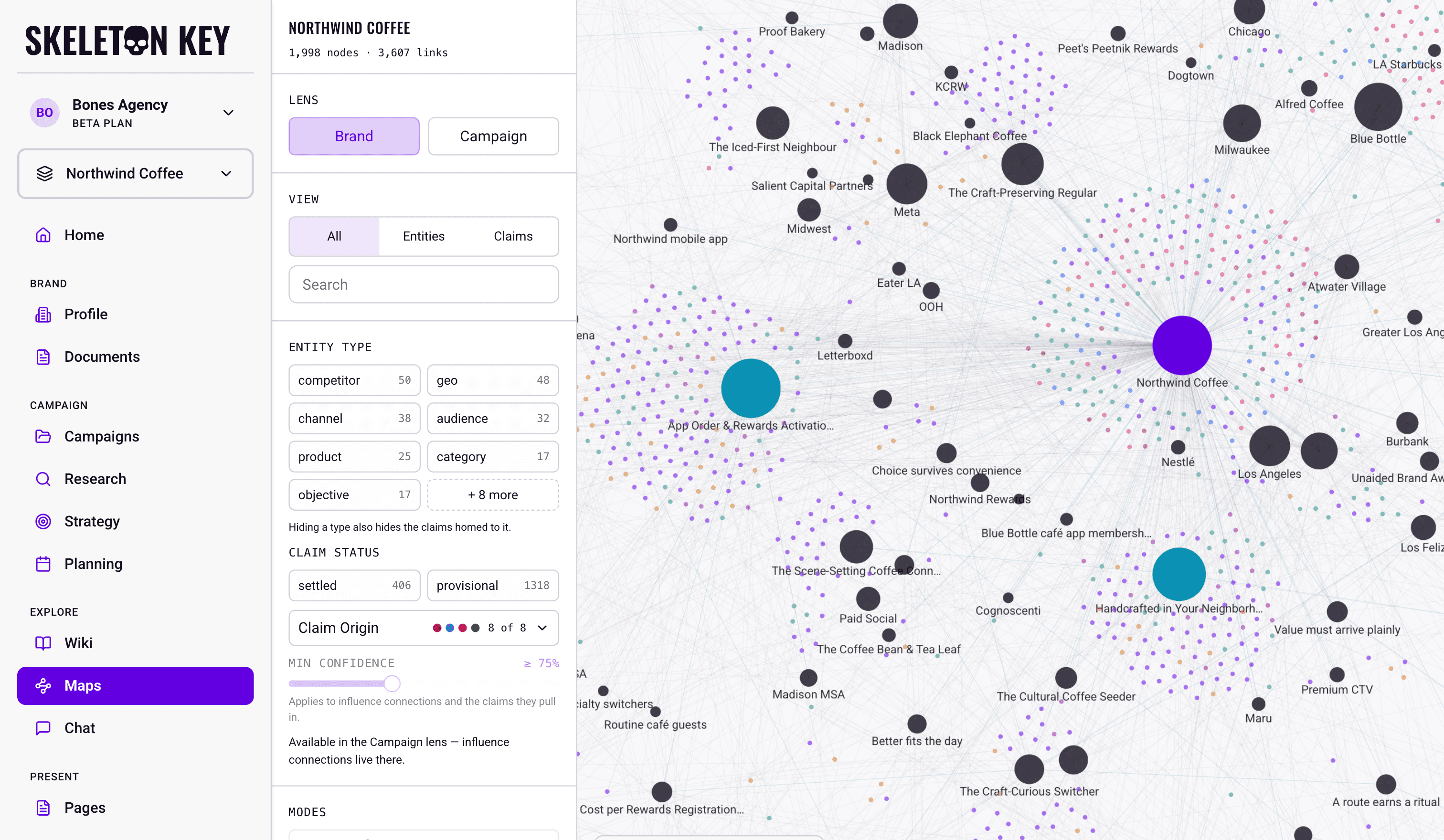
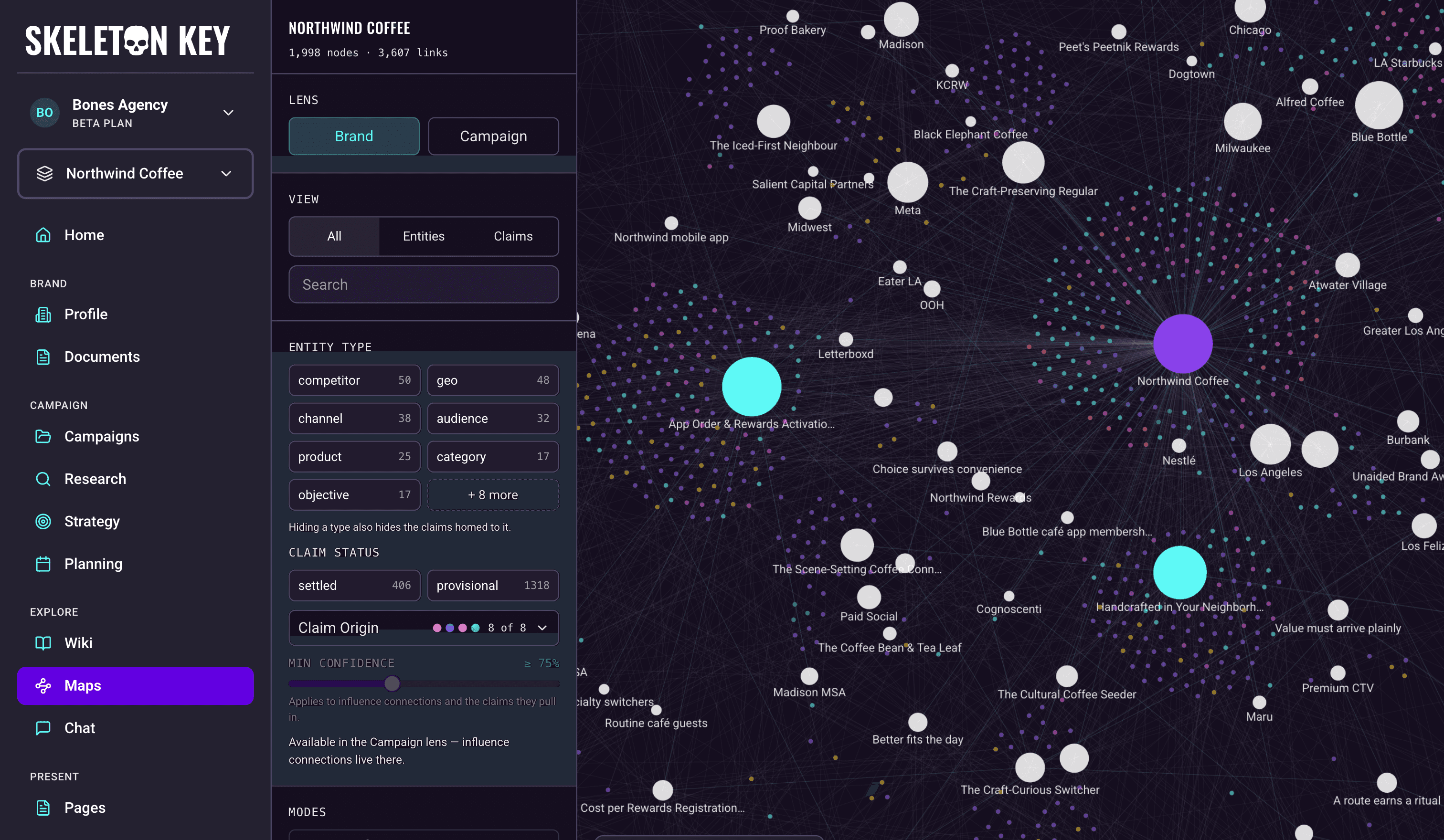
Explore your Wiki as a graph of entities, claims, and their connections. Start with the whole brand to find a topic, or choose a campaign to follow how a research finding informed a strategy or media recommendation.
What it shows
There are two kinds of node. Entities are the things the Wiki keeps a page on, such as audiences, channels, products, and competitors, drawn from the Wiki's fixed set of entity types. Claims are the individual statements the Wiki compiled from your Brand Profile, campaign briefs, Documents, Research, Strategy, Media Plan, and Marketing Mix Model runs. Each claim hangs off its home entity, so a busy entity shows up as a node with a cloud of claims around it.
Four kinds of line connect them, listed in the key at the bottom of the canvas:
- Influence (claim to claim): the Wiki identifies one claim as informing another, with a confidence score. These lines appear in the Campaign lens.
- Semantic (entity to entity): two entities the Wiki considers related.
- Mention (claim to entity): a claim names an entity other than its home.
- Halo (claim to its page): the short tie between a claim and its home entity.
Read the connection itself before drawing a conclusion: two nodes being close together is a layout choice, not evidence that one informed the other. Use Search, filters, or Focus to work through a busy map.
Where to find it
Under Explore in the sidebar, open Maps. The page lives at /maps and opens on the brand as a whole, with the brand you have selected in the sidebar.
You need a completed Brand Profile and compiled Wiki knowledge to explore. On smaller screens, open Map controls at the top-left of the canvas to reach the lens selector and filters.
Brand lens and Campaign lens
The Lens toggle at the top of the left rail decides how much of the Wiki you see.
The Brand lens brings together the brand's entities and claims across campaigns. It shows mentions, semantic connections, and the ties between claims and their home entities. Large maps may show a subset of claims, with a notice above the canvas.
The Campaign lens narrows the canvas to claims from one campaign and their home entities. It also brings in brand-level claims directly connected to those findings by influence lines that meet Min confidence. A brand-level finding can therefore appear even though it did not come from that campaign.
Pick a campaign from the selector under the toggle. When workflow chains are available, Lineage lets you choose one Research, Strategy, and Media Plan chain or keep All lineages. Shared campaign inputs and connected brand knowledge can remain visible when you choose a lineage.
For example, to investigate a channel recommendation, choose its campaign and workflow chain, search for the channel or recommendation, and open a claim. Informed by shows the findings feeding it, and Informs shows what used it next.
Reading a node
Hover over any node to light up its direct connections and fade the rest of the map. Click an entity to open its card. Claim mix shows its total claims and the settled/provisional breakdown, and Top connected entities and Top claims let you follow its connections. Choose Open wiki page to read the article and evidence. Some entities without an article of their own open a page collecting the findings that mention them instead. If the map is capped, the mix also identifies claims not shown.
Click a claim to read its statement, status, scope, and Where this came from, including the evidence quote when one is available. View source, when available, opens the originating work or document. View on wiki takes you to the claim on its home Wiki page.
In the Campaign lens, claims with visible influence connections also show Informed by and Informs, with the connected statements, confidence scores, and explanations. These lists follow the current filters and confidence threshold. Click a statement to inspect that claim.
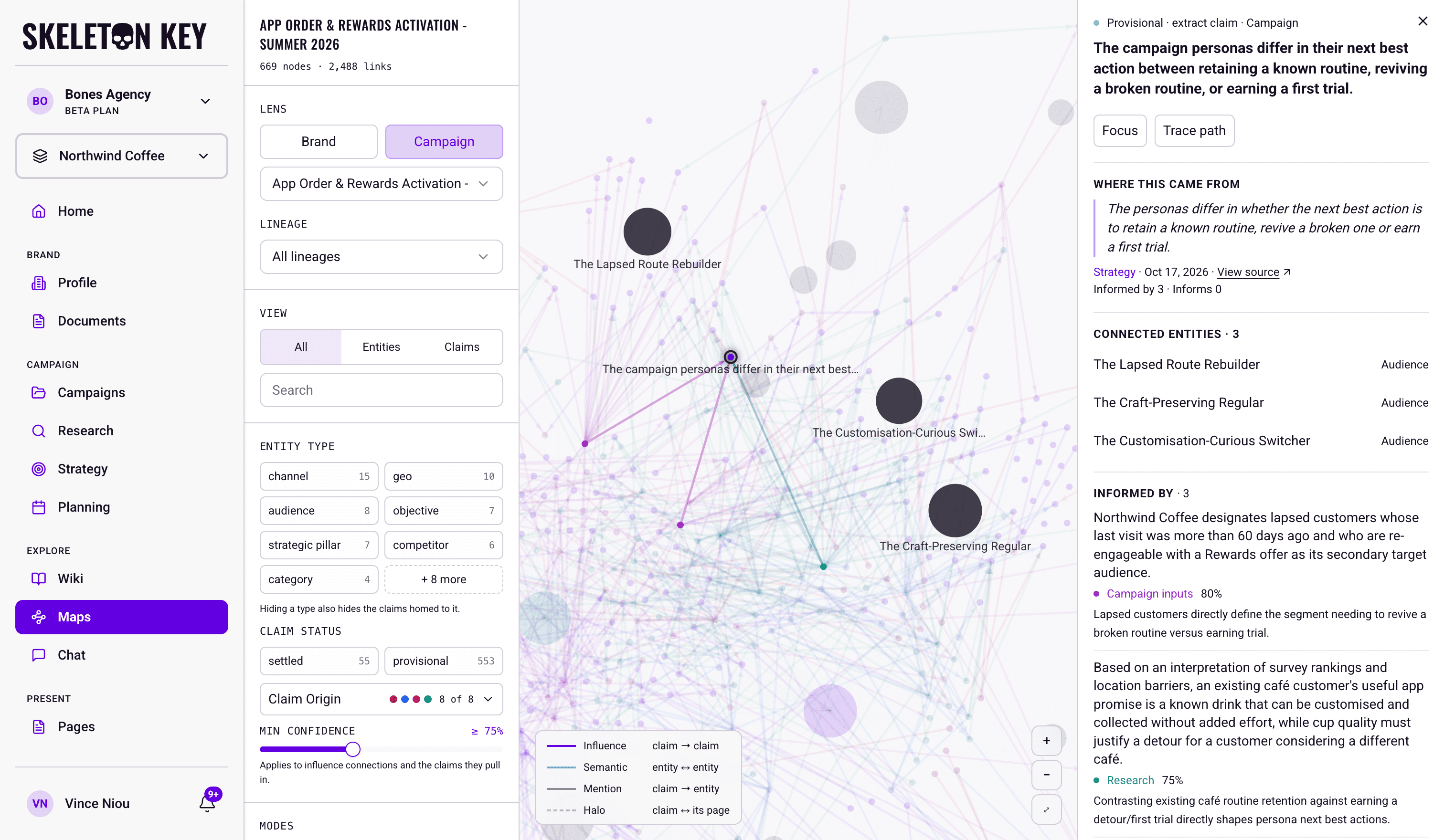
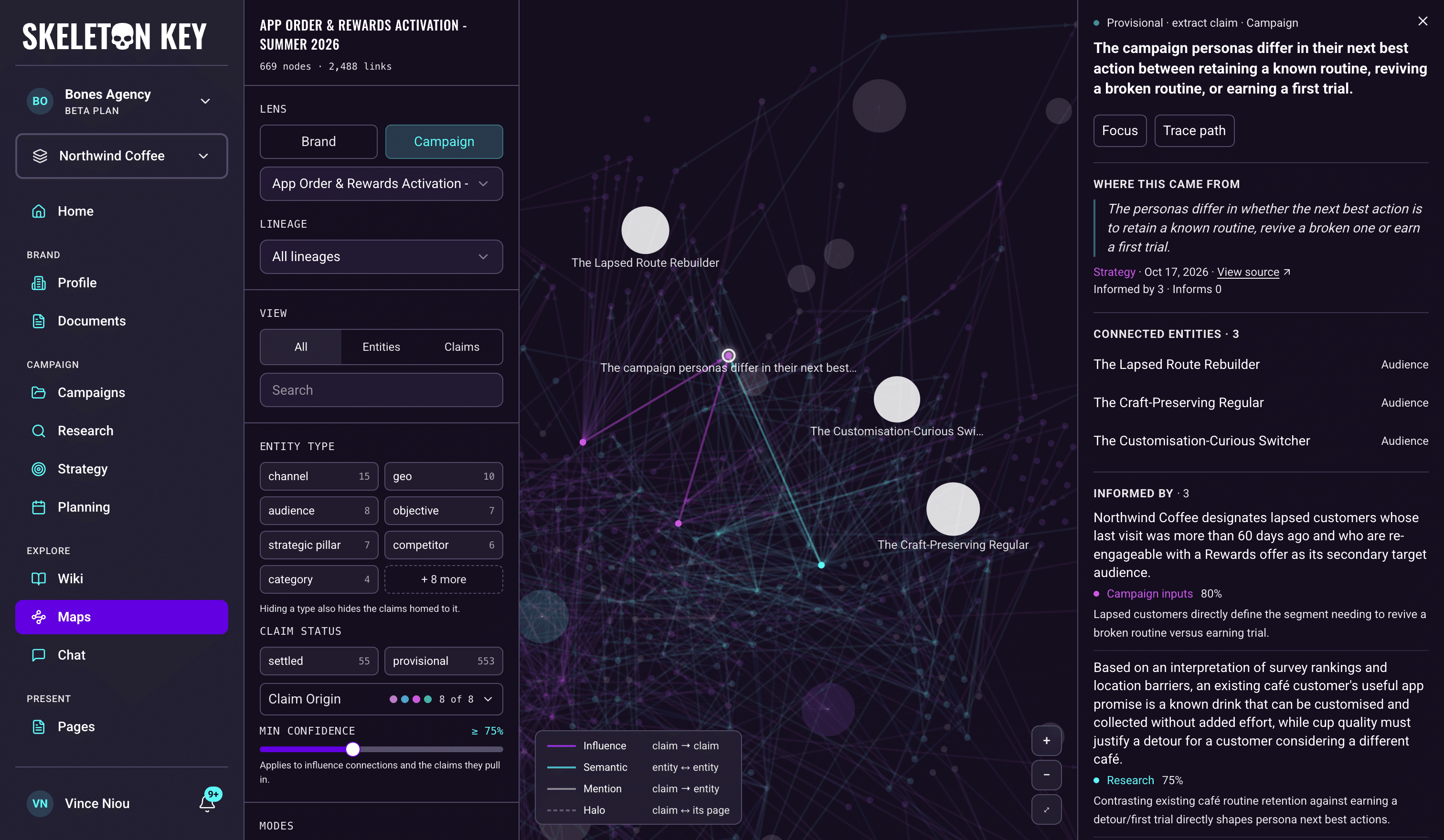
Click an influence line to read why the Wiki connected its two claims. Click a semantic line to see the relationship types and supporting claims, then use View claim to inspect the evidence. A claim outside the loaded map may be listed without a working jump.
Trace Path and Focus
Use Trace Path to follow influence through a campaign. Use Focus to reduce the canvas to a smaller neighborhood. Only one mode is active at a time, and both work within your current filters.
Trace a finding through a campaign
- 01
Choose the campaign you want to trace
Switch to the Campaign lens and select the campaign. Choose a lineage if you want to concentrate on one workflow chain.
- 02
Start a trace from a connected claim
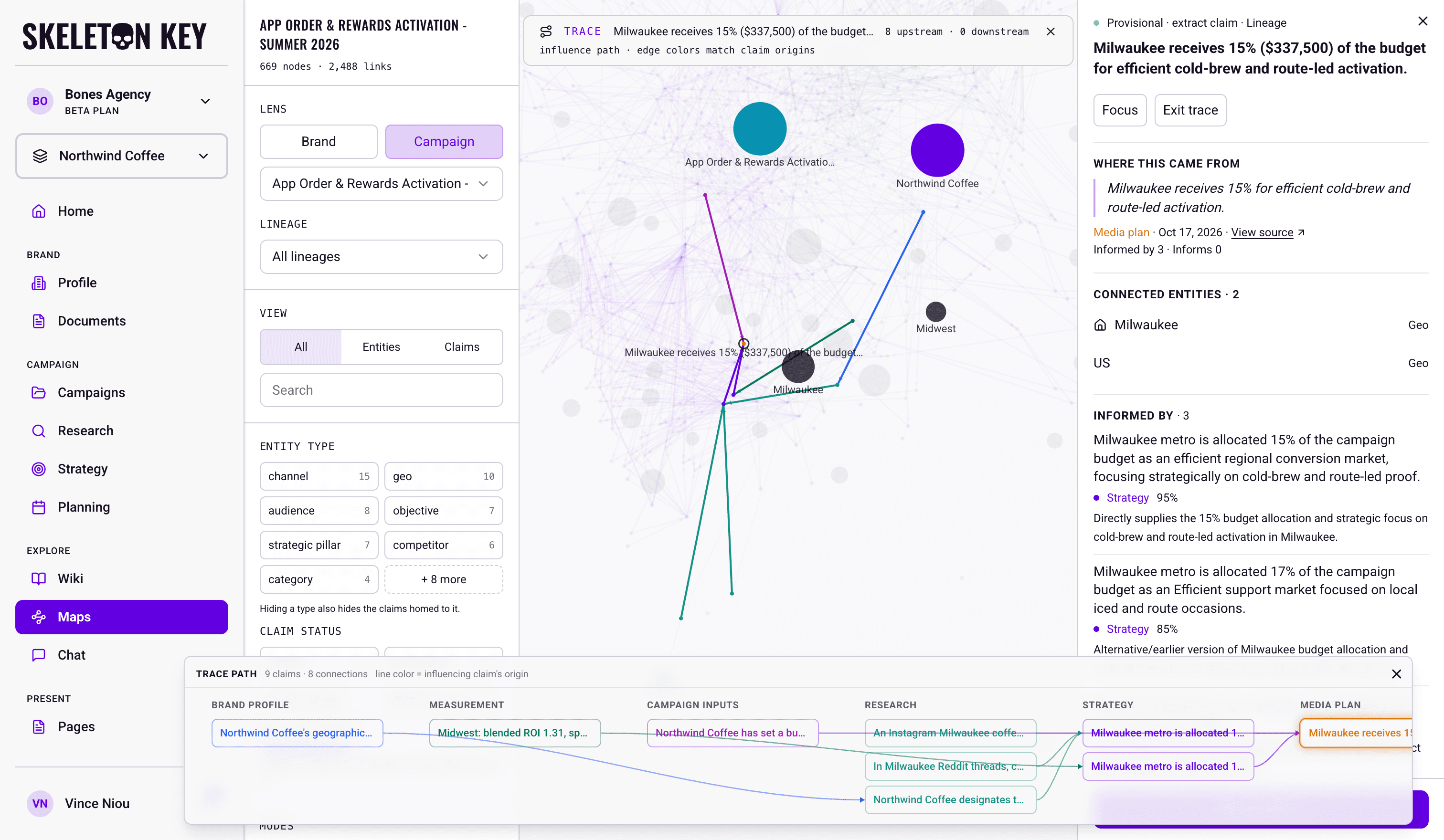
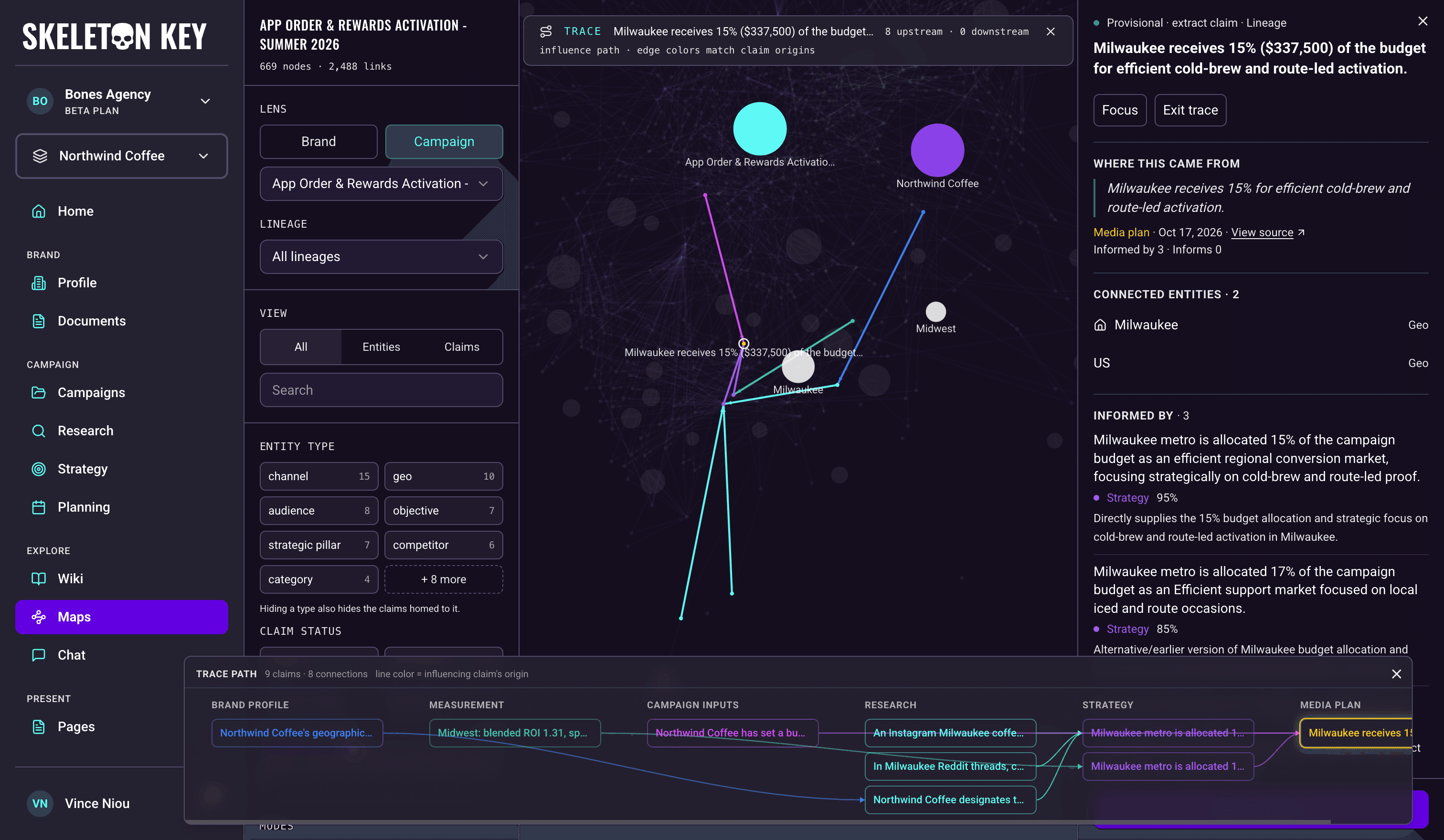
Open a claim and choose Trace path, or choose Trace a claim’s path under Modes and then select a claim. The claim needs at least one visible influence connection. If tracing is unavailable, check your filters or lower Min confidence.
- 03
Read the upstream and downstream findings
The canvas dims the rest of the map. The banner counts upstream and downstream claims, and the Trace Path panel below groups the connected findings by origin. Line colors match claim origins. Click a claim in that bottom panel to read its card while keeping the original trace in place.
Selecting another connected claim on the canvas moves the trace to that claim. Close the trace panel or use the banner's exit control to return to the wider map. Closing the detail card also exits the mode.
Focus on a smaller neighborhood
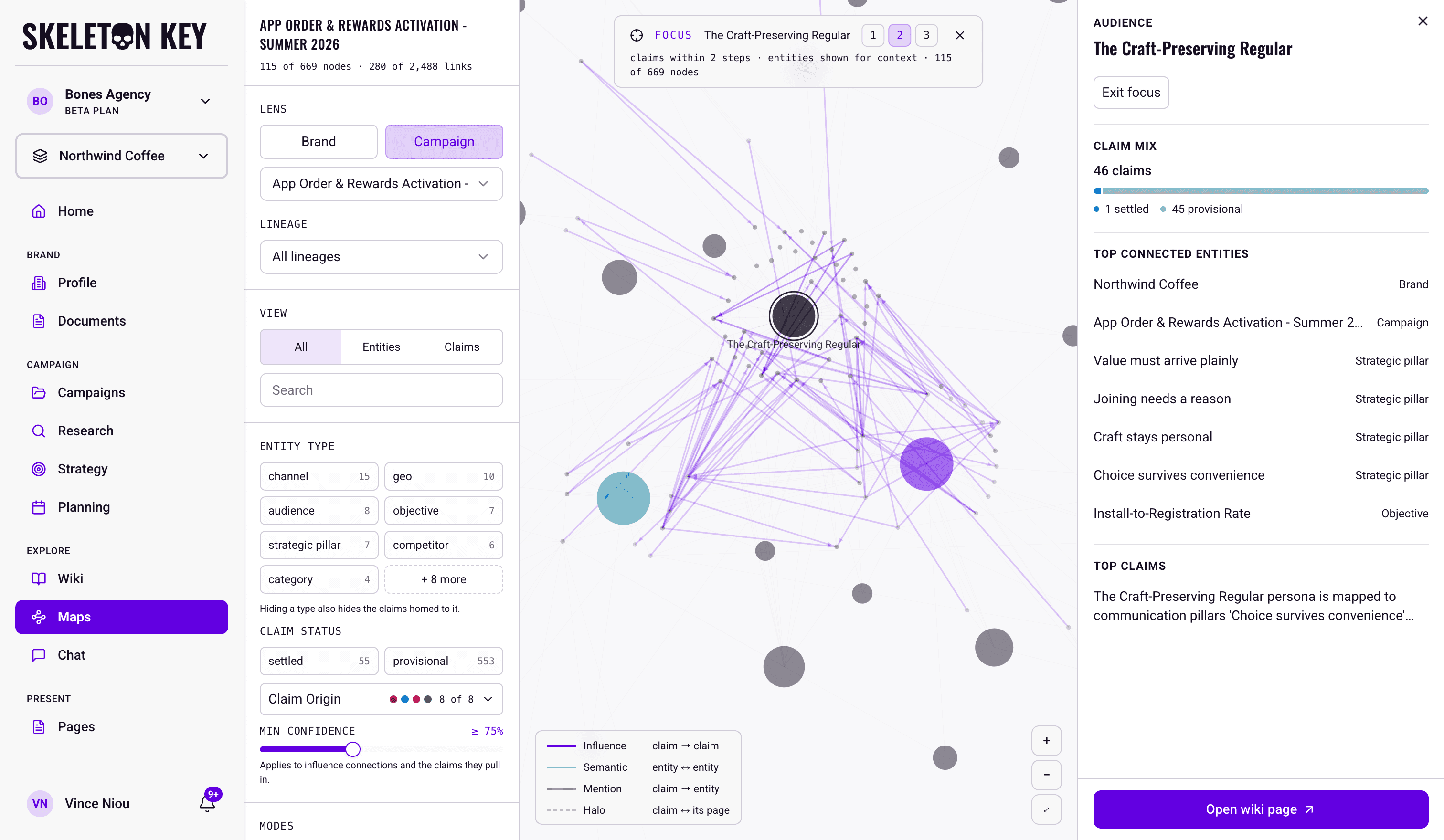
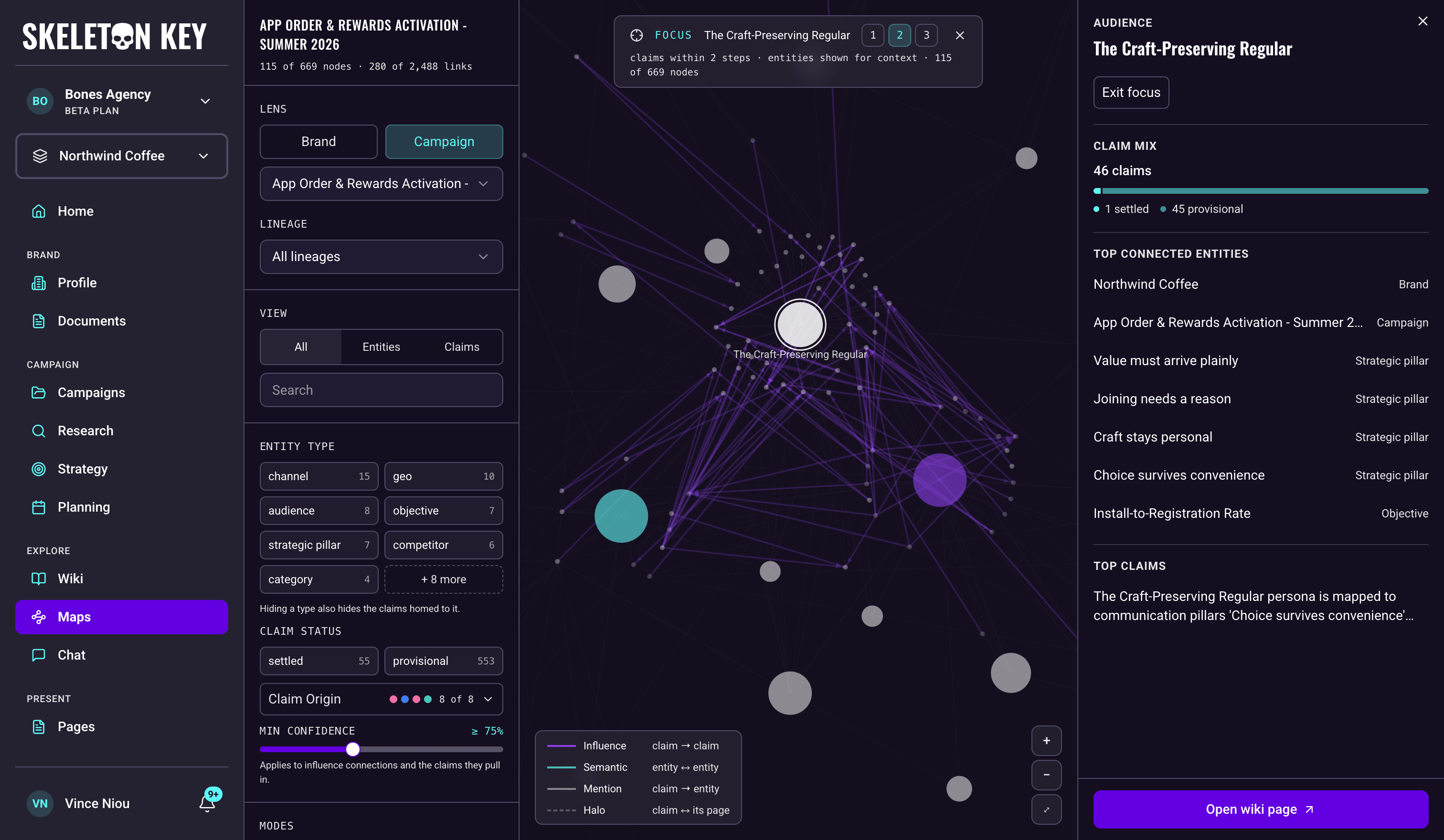
Open a node's card and choose Focus. It starts at two steps. Use 1, 2, or 3 in the banner to change the distance.
For an entity, the first step shows claims homed to it or mentioning it. Further steps follow influence connections between claims, with entities retained for context. For a claim, steps follow its influence connections in either direction. Since the Brand lens has no influence lines, increasing the step count there does not expand an influence path.
Selecting another visible node moves the focus to it. Choose Exit focus, close the card, or use the banner's exit control to return to the full filtered view.
What you can adjust
- View offers All, Entities, and Claims. Claims view keeps entities as faint background anchors, but you cannot select or search those anchors. Switch back to All or Entities to inspect an entity.
- Search matches entity names and claim statements in the current filtered map. It highlights matches and lists up to 20 results. Select a result to bring it into view and open its card. You can also use the arrow keys and Enter. Clear the search to remove the spotlight.
- Entity type chips hide whole categories at once. Hiding a type also hides the claims homed to it.
- Claim status separates settled claims from provisional ones. Claims from your inputs, uploaded documents, and MMM results start settled, as do team edits. Generated findings start provisional and can be confirmed on the Wiki page. Settled is a status in the Wiki, not a guarantee that a statement is correct.
- Claim Origin filters claims by the workflow that produced them (Research, Strategy, Media plan, Measurement, and so on). Turn on Color by origin to paint the claims by origin instead of by type.
- Min confidence hides influence lines below the threshold and the brand-level claims that only those lines bring in. It starts at 75%, ranges from 60% to 100%, and only applies in the Campaign lens. It does not filter semantic, mention, or halo lines.
- Zoom controls sit in the bottom-right corner of the canvas: in, out, and fit to view.
Filters combine: a claim must pass the selected entity types, statuses, and origins to remain visible. Hiding the selected node closes its card and exits its active mode. If nothing matches, re-enable the filters you turned off. Changing the search alone does not restore filtered-out nodes.
Share a map view
Copy the browser URL to share the brand, lens, campaign, lineage, filters, confidence threshold, and color-by-origin setting. The recipient needs access to the brand and must be in its organization.
The link restores those controls, not your selected card, search text, zoom, Focus, or Trace Path. If you are discussing a specific finding, include its wording so your teammate can search for it.
When the map looks empty or incomplete
| What you see | What to check |
|---|---|
| No compiled wiki yet | Run Research or upload Brand Documents, allow the Wiki to compile, then reload Maps. If the Wiki already has content, check that you selected the right brand, and ask your administrator if the mismatch persists. |
| No wiki claims for this campaign yet. | Check the selected campaign and lineage. Its completed work must compile into the Wiki before claims appear. |
| Nothing matches the current filters. | Restore the entity types, claim statuses, or origins you hid. |
| A notice showing the most connected claims | The map is capped. Use the Wiki to inspect evidence beyond the displayed subset. The entity card's total can exceed the claims shown. |
| Influence edges unavailable | The campaign's structure is still visible, but influence could not load. Use the notice's Retry control. |
| Evidence or an explanation is unavailable | Use Retry if offered. If the message says the claim or connection was recompiled, reload Maps to load the current knowledge. |
Limits and considerations
New work appears after the Wiki compiles it. An open map does not update automatically, so reload it to pick up changes.
Influence connections exist only within a campaign. In the Brand lens you see mentions, semantic links, and halos, but nothing about which claim shaped which.
To confirm, edit, or restore a claim, use View on wiki and make the change there if you have edit access. Reload Maps to see updated claims. Wiki articles may take longer to refresh.
Maps is beta. Use it to explore what the Wiki knows and check the evidence behind a decision. An influence score is the model's estimate of a connection, not a measurement of marketing impact or proof of causation. The Wiki only draws influence connections it rates at 60% or higher, so a missing line doesn't prove that one finding had no bearing on another.
Last updated: 2026-11-03