

Chat
Ask anything about your brand, answered from its Wiki and live media plan with citations you can open.
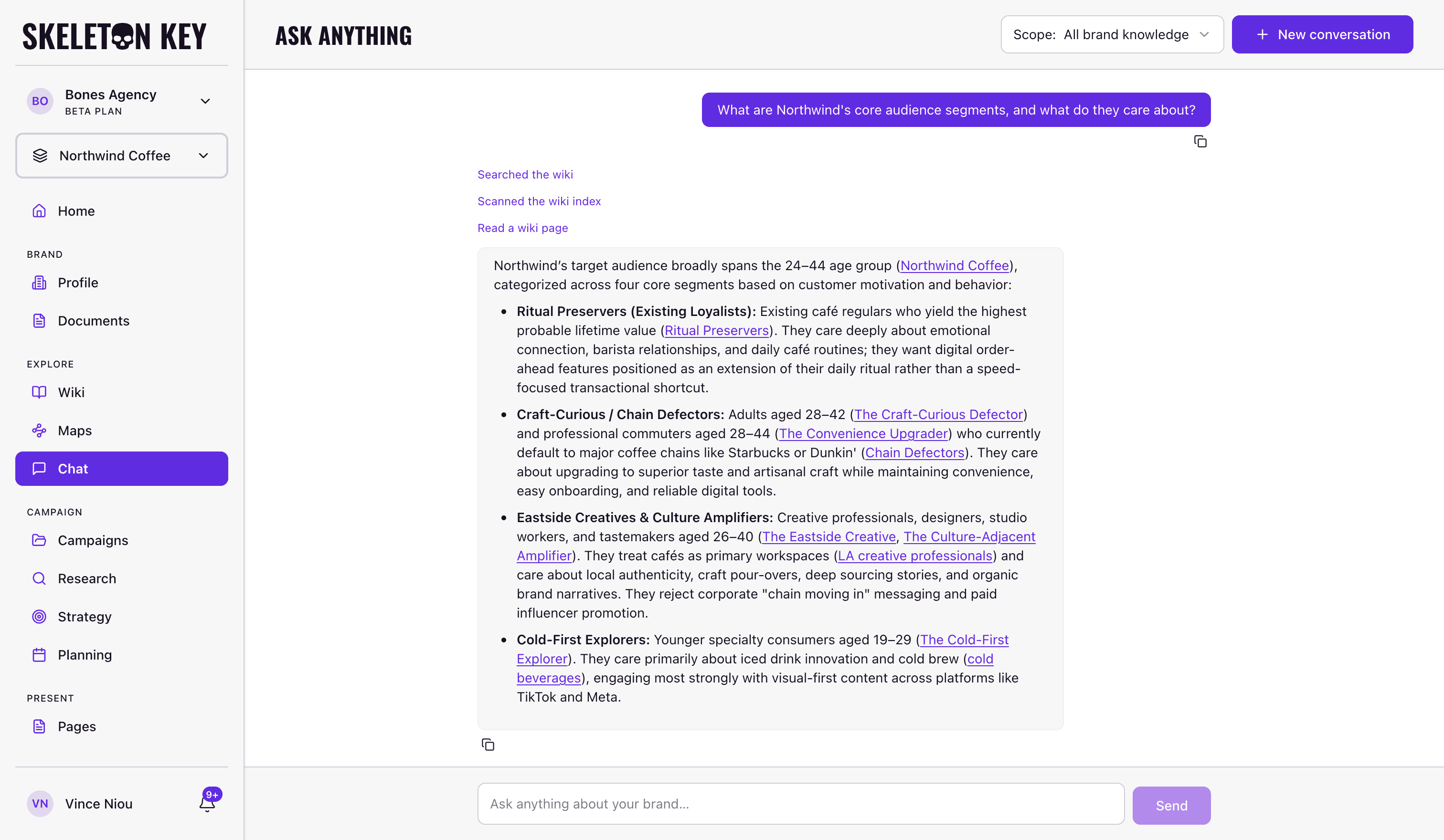
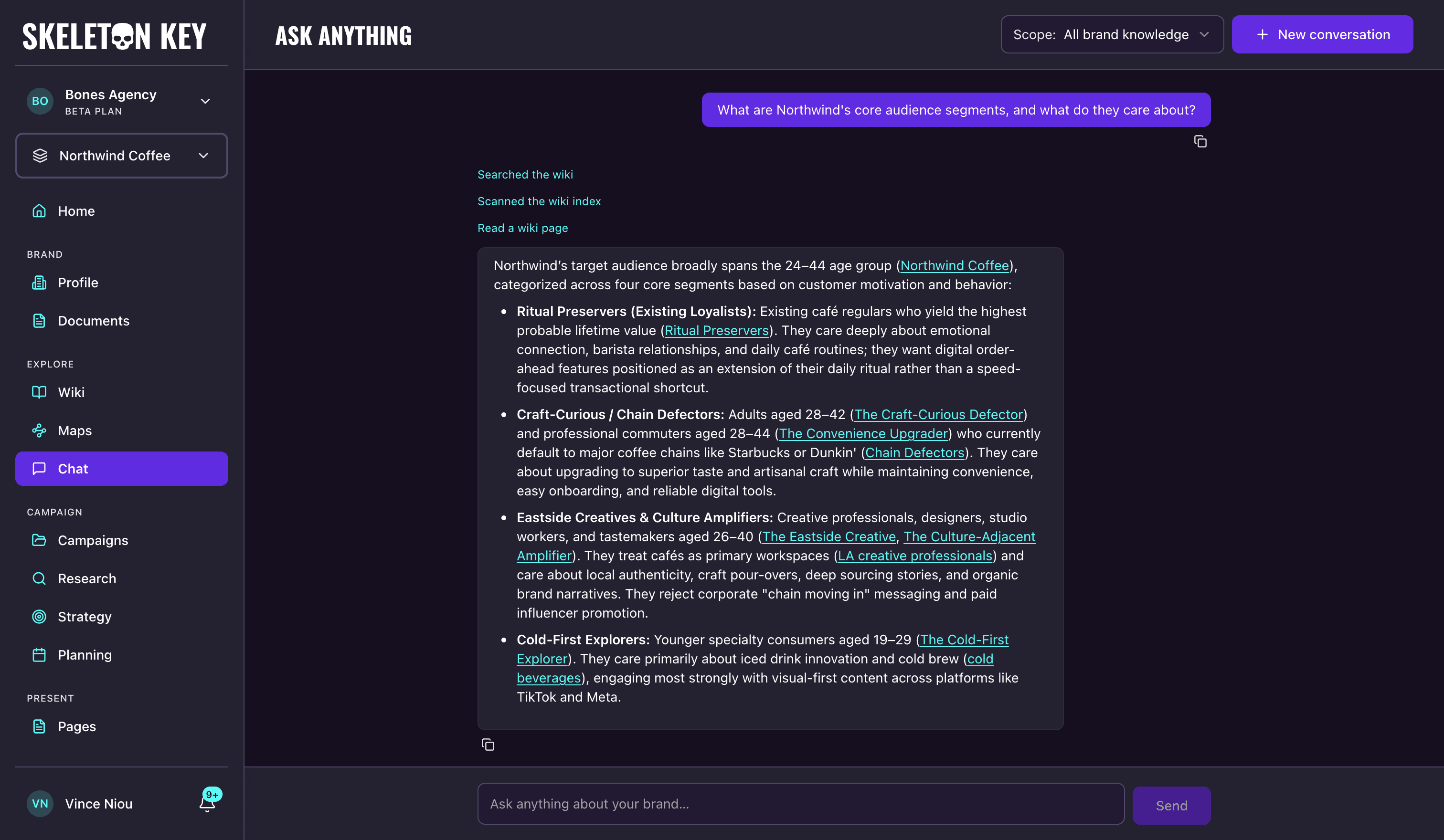
Chat answers questions from everything your brand knows in Skeleton Key. Behind it is the Wiki: the compiled, evidence-backed knowledge base built from your Brand Profile, campaign work, generated outputs, and uploaded documents. When an answer draws on a Wiki page, it cites that page inline, so you can open it and read the evidence yourself.
What it draws on
The Wiki is Chat's knowledge base. Chat searches, browses, and reads its pages the way you would, and every finding it uses keeps its source. It can also answer structural questions, such as what sits under a channel or which product line a product belongs to, by reading the Wiki's own parent and child links. Media plan numbers work differently. The plan is a live working document, so Chat reads budget, channel, audience, and flighting figures straight from the plan at the moment you ask, rather than from knowledge compiled about it. Figures read this way are attributed to the plan rather than cited to a Wiki page; plan findings the Wiki has already absorbed surface as ordinary cited knowledge. A campaign-scoped conversation uses that campaign's latest plan; in an all-brand conversation where more than one campaign has a plan, Chat asks which one you mean.
Chat does not search the web, and it does not answer from general knowledge. If the answer isn't in what your brand has built, it says so.
Where you'll find it
Click Chat under Explore in the sidebar to open the dedicated page at /chat. An Ask Anything panel is also one click away on the four output pages: Brand Profile, Research, Strategy, and Media Plan. The panel grounds itself in what you're reading; the page is built for longer conversations across the whole brand.
The Chat page
The page opens on a single conversation. A summary line shows how many pages the brand's Wiki holds, with a link to explore them; before anything has been compiled, that line instead points you at uploading a document or running a workflow. Three starter prompts get you moving if you're not sure what to ask. While Chat works, status lines above the answer show each step: searching the wiki, scanning the wiki index, reading a wiki page, checking a page's family, reviewing the media plan, and finally writing the answer. Finished steps stay in view, switched to the past tense, so you can see how the answer was put together.
Citations arrive as inline links in the answer. Hovering one shows a preview card with the page's name, type, and summary; clicking opens the Wiki page in a new tab, so the conversation stays where it is.
Two controls sit in the header. The scope selector chooses what the conversation reads (see below). New conversation clears the current one and starts fresh; once the conversation holds any messages, Chat asks you to confirm first.
Scope
Every conversation has one scope, chosen from the selector in the header: All brand knowledge, or a single campaign. A campaign-scoped conversation reads that campaign's findings plus the brand's general knowledge, which keeps answers focused when several campaigns have covered similar ground.
Scope is fixed for the life of a conversation. Changing it starts a new one, and Chat confirms before discarding anything you've written.
The Ask Anything panel
On the Brand Profile, Research, Strategy, and Media Plan pages, an Ask Anything button opens the same assistant beside the output you're reading. The panel header shows what the conversation is grounded in (the campaign for campaign outputs, all brand knowledge on the Brand Profile) and which output you're viewing. Ask about the page in front of you or anything else the brand knows.
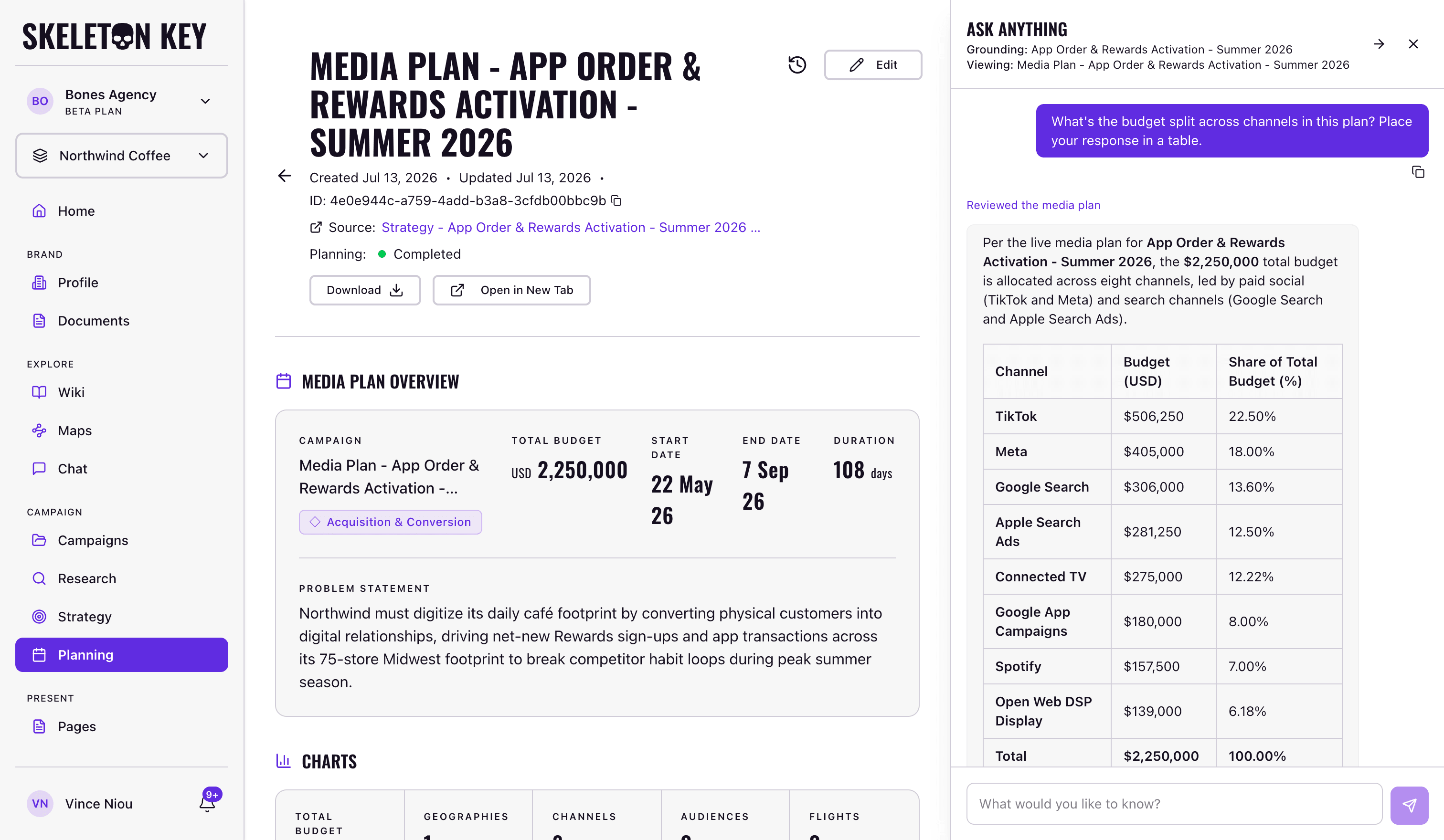
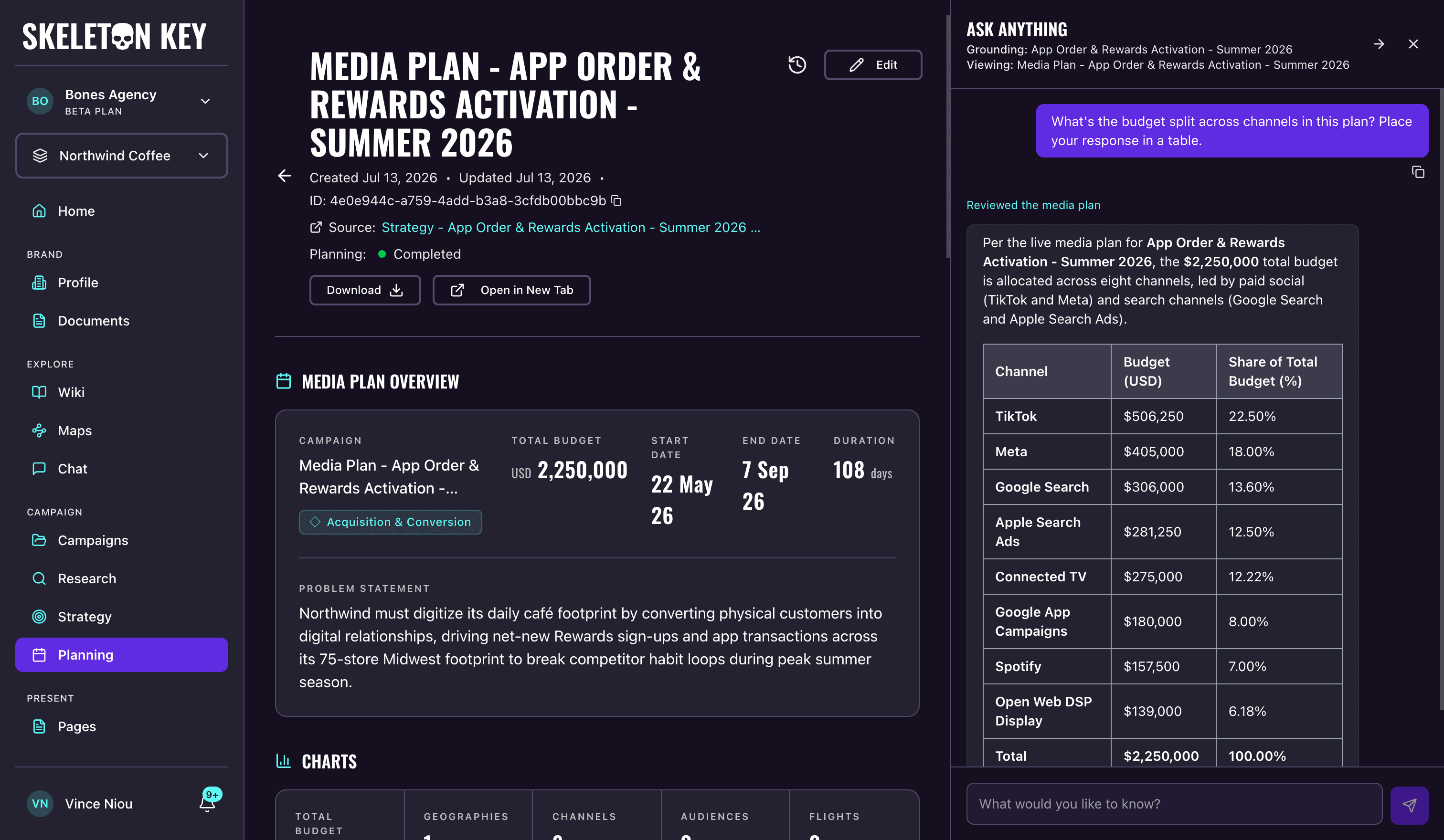
On a wide screen the panel docks beside the content, and the page shifts over rather than being covered. Drag the panel's left edge to resize it between 380 pixels and half the window, or double-click the edge to reset; the width you pick persists. On smaller screens the panel overlays the page, and on mobile it takes over the screen and closes with a swipe down. Press Esc while working in the panel to close it.
After the first completed answer, an arrow appears in the panel header. It hands the conversation off to the Chat page with its transcript and scope intact, for when a quick question turns into a longer session.
You can keep the panel open while viewing an older version of an output. A note reminds you that answers reflect the current version, not the one on screen.
Limits and considerations
- A Brand Profile is required. Chat draws on what your brand has built, and the profile is where that starts. The less work a brand has generated, the less Chat has to say.
- No web search. Answers come only from your brand's knowledge and its media plan. When sources disagree on a fact, Chat shows both values and where each came from instead of silently picking one.
- Conversations are not saved for later browsing. Chat remembers the conversation you're in, but there is no history list yet: leaving the Chat page starts a new conversation on your next visit. The panel's hand-off arrow is the way to carry a panel conversation forward.
- Chat is beta. Verify anything load-bearing by opening the cited Wiki page and reading the evidence behind it.
Last updated: 2026-09-20