

Brand Maps
A knowledge graph that shows how findings, decisions, and tactics connect across phases.
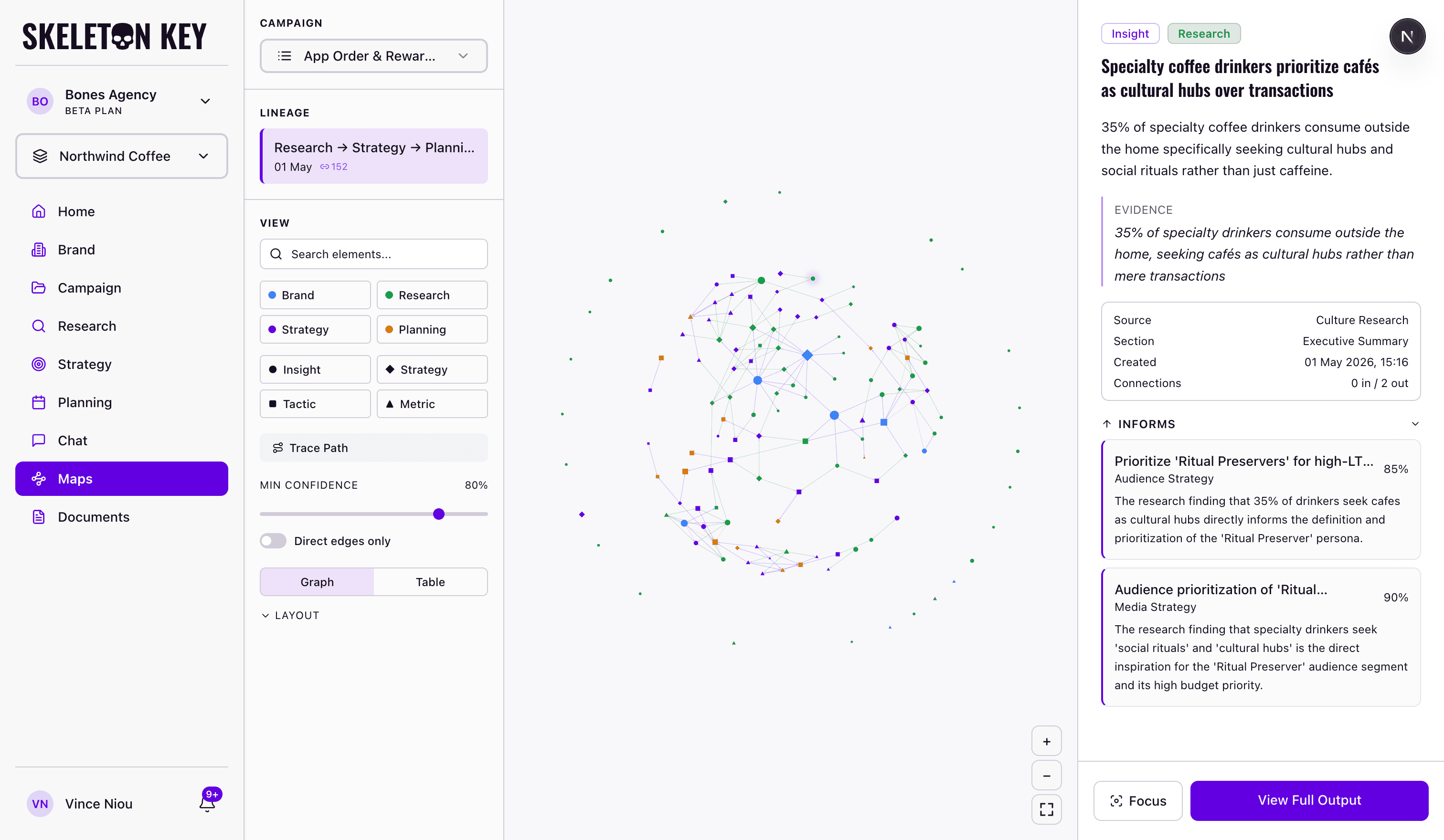
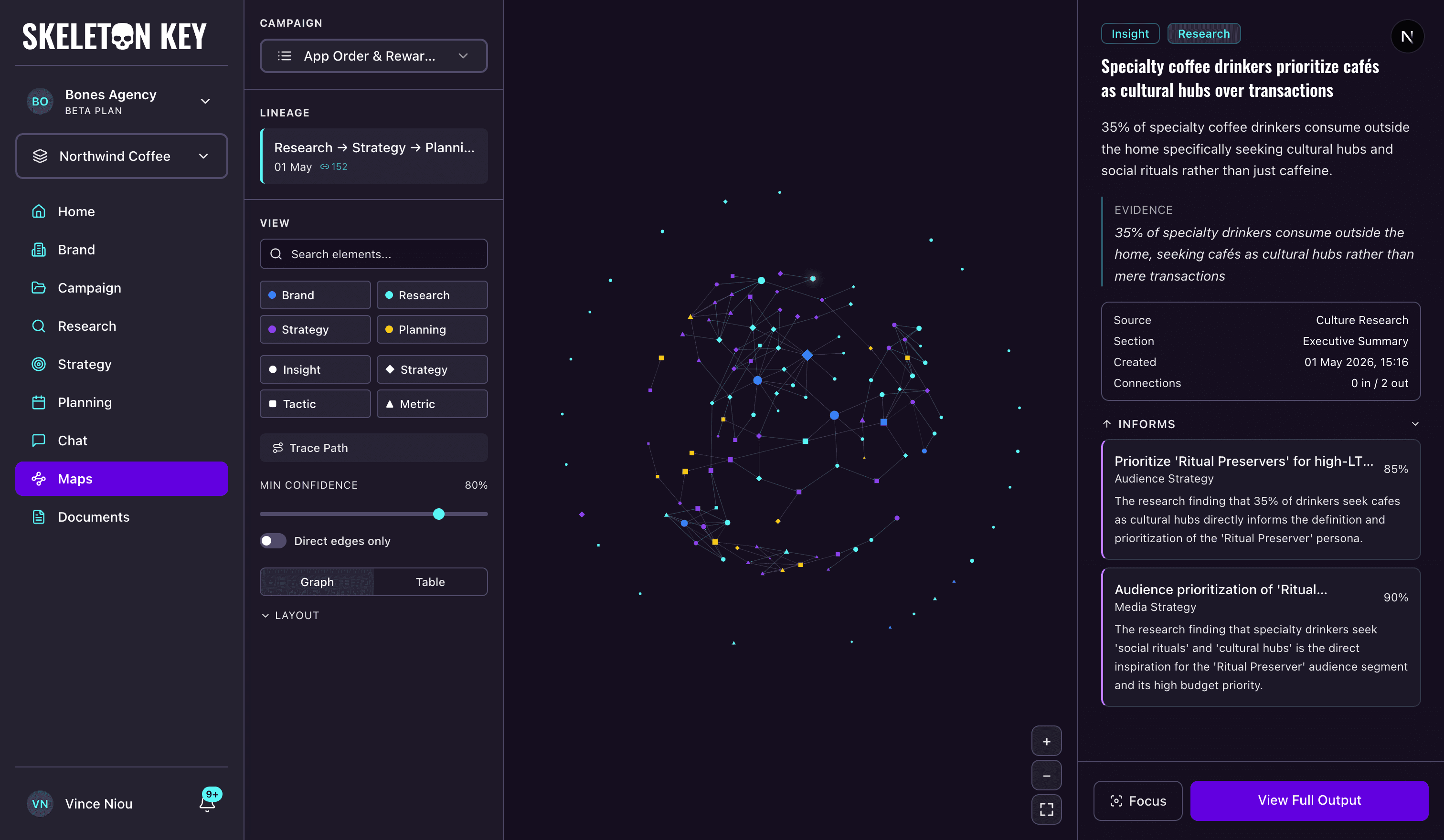
Brand Maps is a knowledge graph that shows how the work in one phase shaped the next. Each node is one element pulled from an agent output; each edge is a confirmed influence between two elements with a confidence score.
What it shows
A typical brand with one full Brand Profile, Research, Strategy, and Media Plan run produces 50 to 100 nodes and 30 to 60 edges. Shape is the element type: insights are circles, strategies diamonds, tactics squares, metrics triangles. Color is the phase: blue for Brand, cyan for Research, purple for Strategy, yellow for Planning. Edges run upstream to downstream, so following an edge backwards from a tactic traces the thinking that produced it.
Where to find it
Under Explore in the sidebar, open Maps. The page lives at /maps and is campaign-scoped, so the campaign selector at the top of the left panel is the first control you use. There is no brand-level option in v1; until you pick a campaign, the canvas stays empty.
How it works
Extraction runs automatically after each workflow finishes, and again after a refine, a version restore, or a Media Plan draft-to-Ready toggle. An extraction model reads each output for that phase and returns 5 to 10 elements for the Brand Profile or 10 to 15 elements for Research, Strategy, and Media Plan outputs.
Each downstream element is then paired with similar upstream elements, and the model decides whether the influence is real. Pairs scoring 0.6 or higher become edges. Skip-level edges (a research insight feeding a Media Plan tactic with no strategy element between) are allowed but receive a small confidence penalty per phase skipped.
The Lineage list in the sidebar shows each workflow chain with an edge-count badge that updates live with the confidence slider. Click a node to open the detail panel: type and phase badges, title, description, evidence quote, and two collapsible sections, Informed by for incoming edges and Informs for outgoing ones. Empty sections hide themselves. Click an edge for the model's explanation in a floating panel.
What you can adjust
Search filters by title, description, and agent label. Phase and element-type toggles hide whole categories at once. The Min Confidence slider defaults to 75% in 5% steps; turning Direct edges only on hides skip-level connections. Switch to Table view to read the same elements grouped by phase and agent. Trace Path opens a small flowchart in the canvas corner that follows one element through every phase it touches. Focus narrows the graph to a node's 1-, 2-, or 3-hop neighborhood and exits when you close the panel.
Limits and considerations
Extraction is automatic but not infallible. Some outputs return fewer or different elements than expected, and edges below the threshold stay hidden until you lower the slider. There is no manual element editor in v1; to regenerate elements, refine the upstream output and Brand Maps will re-extract. Brand Maps is beta. Treat it as a sense-making tool.
Last updated: 2026-08-03