

Brand Profile
Brand intake, AI profiler, regeneration, and editing.
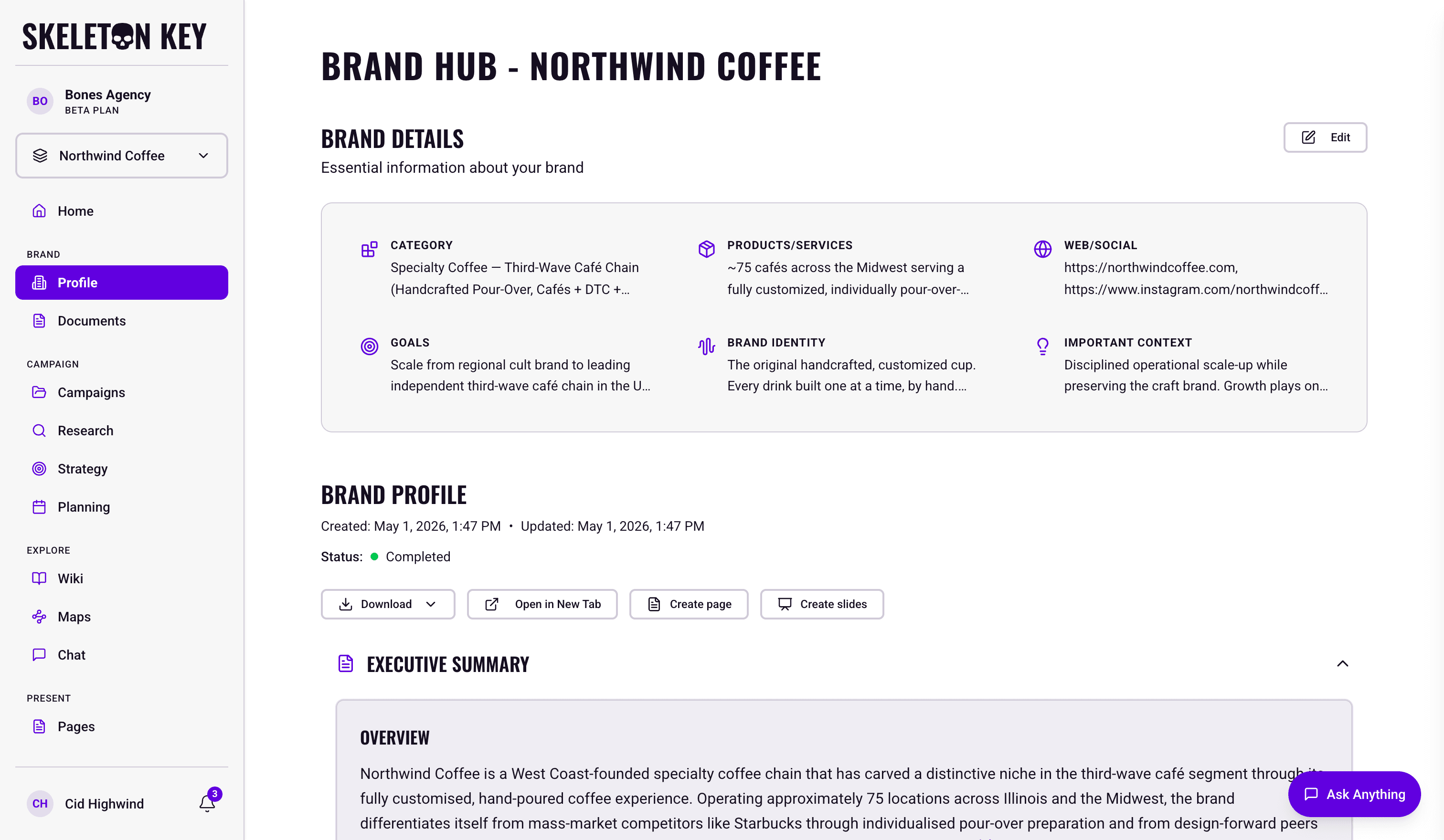
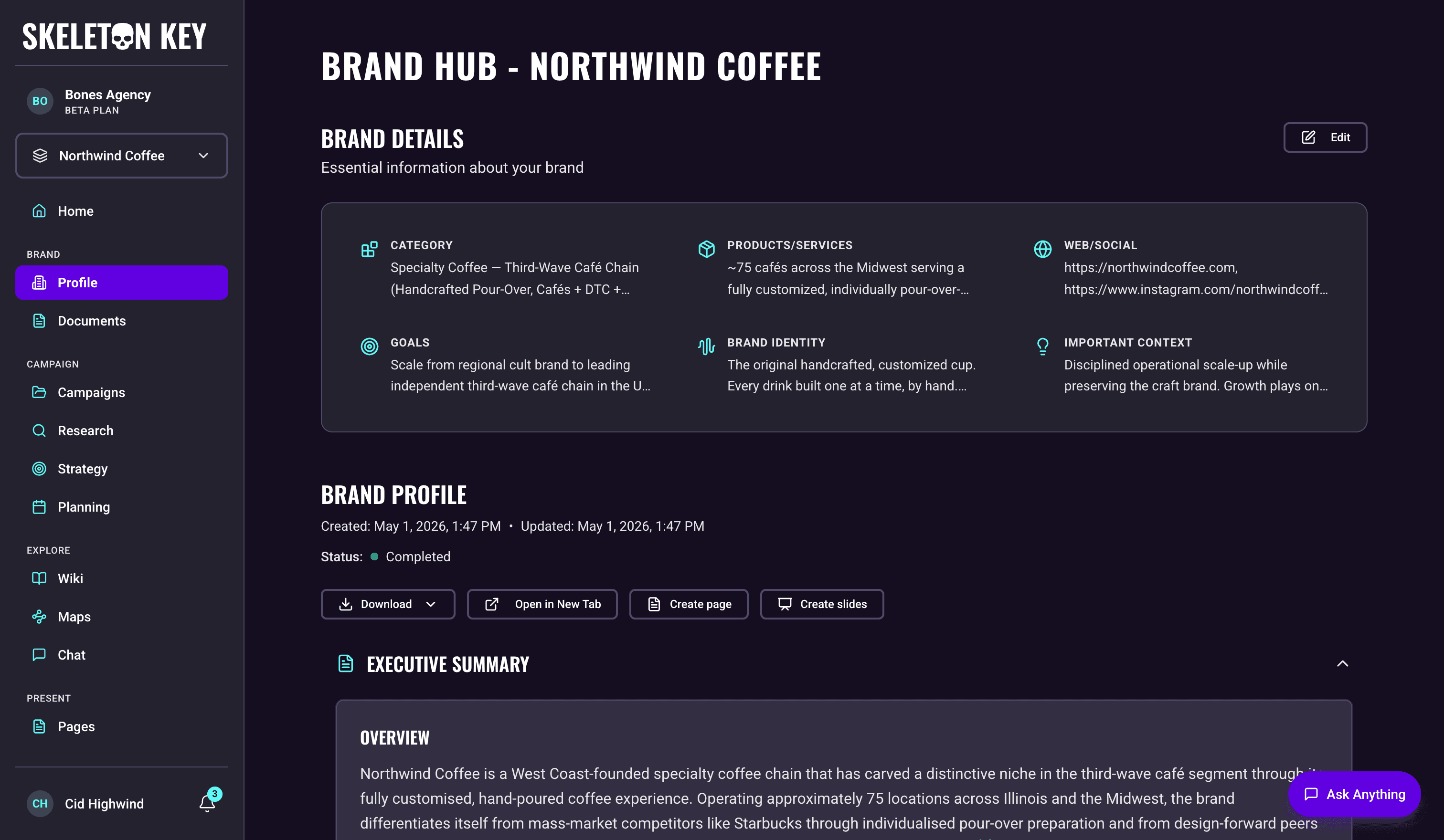
The Brand Profile page is where your work in Skeleton Key begins. Every downstream feature (Research, Strategy, Media Plan) reads from the profile generated here.
What it does
The intake form has seven fields: Brand Name, Category, Products/Services, URLs, Business Goals, Brand Identity, and Important Context. The first five are required. Brand Identity and Important Context are optional but improve output quality.
When you save the form, the Brand Profiler starts automatically. It researches your company on the web, uses website and social information where you provided it, reads the documents you selected, and applies your organization and brand guidelines, then writes the profile. The profile opens with an Overview and Highlights, then covers company background, marketing, and social channels, with a website section when a website was available.
Where the profile draws on a document you attached, the fact carries a citation and the source list shows the filename with the type Brand Document.
Where to find it
Under Brand in the sidebar, click Profile. If you have more than one brand in your org, the brand selector controls which brand is active. The Brand Profile page always shows the profile for the currently selected brand. On a new brand, the intake form opens immediately and the profiler runs after you save.
How it works
- Fill in the form (Brand Name, Category, Products/Services, at least one URL, and Business Goals at minimum).
- Save. The profiler starts immediately. A status indicator shows while it runs.
- Generation takes roughly 2 to 3 minutes.
- When complete, the Brand Profile appears on the page and is available to Research and all downstream features.
What you can adjust
Edit Brand Details: The Edit modal opens from the Brand Profile page header. It shows the same intake form (Brand Name is locked after creation) plus a document selector. After editing, you have two save options.
- Save: stores your changes without rerunning the profiler.
- Save & Regenerate: stores your changes and kicks off a fresh profiler run. The new profile overwrites the previous one.
Document attachment: When you create a brand you can attach files directly on the intake form. On an existing brand, the Edit modal lets you select documents already on your Documents page (PDFs, Word files, Markdown, CSVs, Excel sheets, up to 10MB each). To add new files to an existing brand, upload to Documents first, then return to select them. One run reads about 600,000 characters of document text in total; see Documents for how trimming and document failures show up.
Guidelines: standing rules set on the Guidelines page, for the organization or for this brand, take precedence over attached documents when they conflict.
Limits and considerations
- Brand Name is permanent. It cannot be changed after creation.
- Sparse intake produces sparse output. Skipping optional fields and providing only one URL gives the profiler less to work with. Adding Brand Identity, Important Context, and multiple URLs improves the result.
- Regeneration overwrites the current profile. There is no version history for Brand Profiles. Capture the prior version manually if you want to keep it.
- Generation can fail. A failed run shows a failure card with Try Again. If the problem is one you need to fix in the attached files (a deleted or unreadable document, or too much text), Try Again opens Edit Brand Details with the previous selection so you can change it; any document that has since been deleted is shown as unavailable and dropped. For a temporary failure, Try Again reruns with the same selection.
Last updated: 2026-09-20