

Home
Brand-scoped dashboard with stats, campaigns, and recent activity.
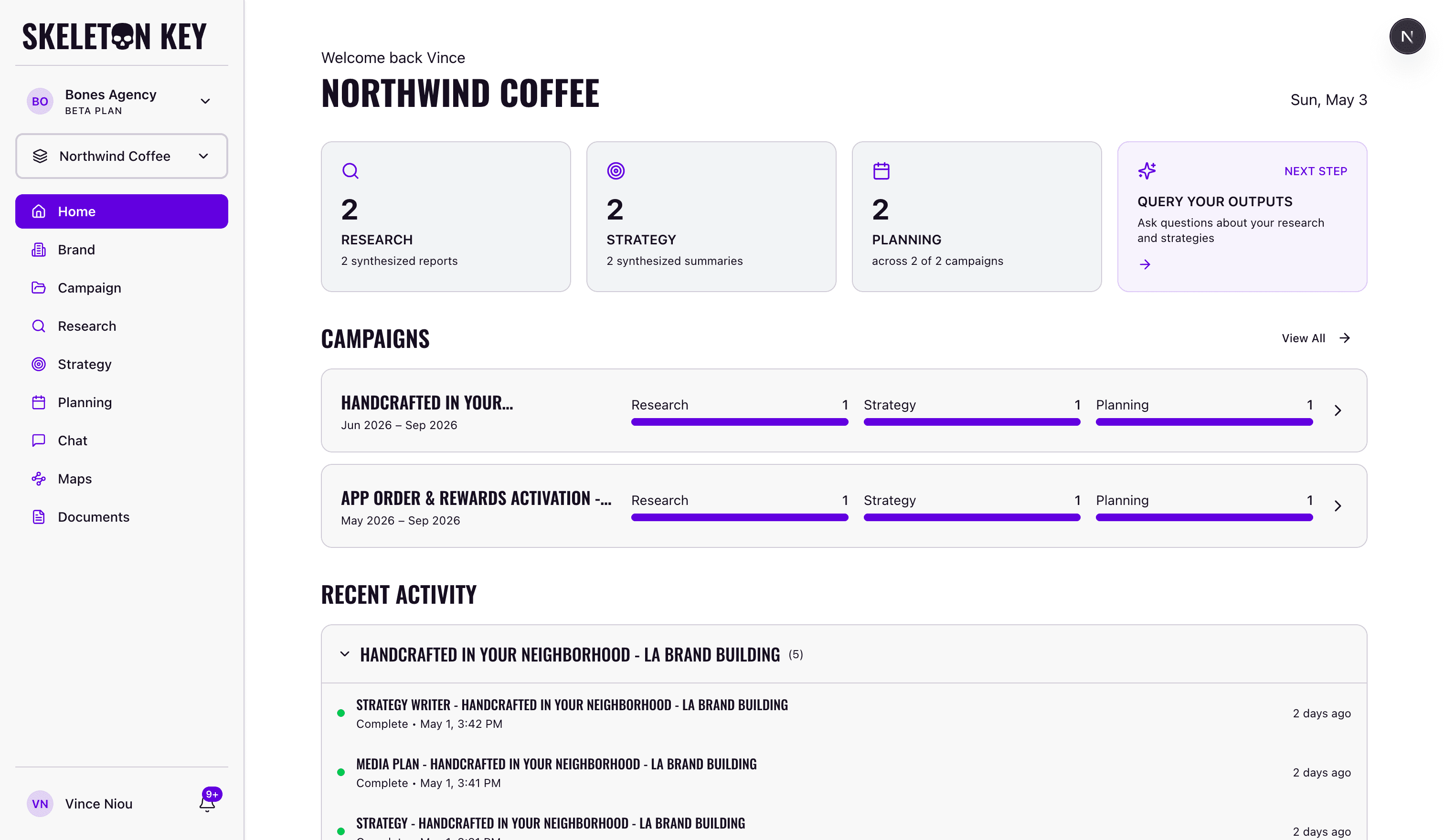
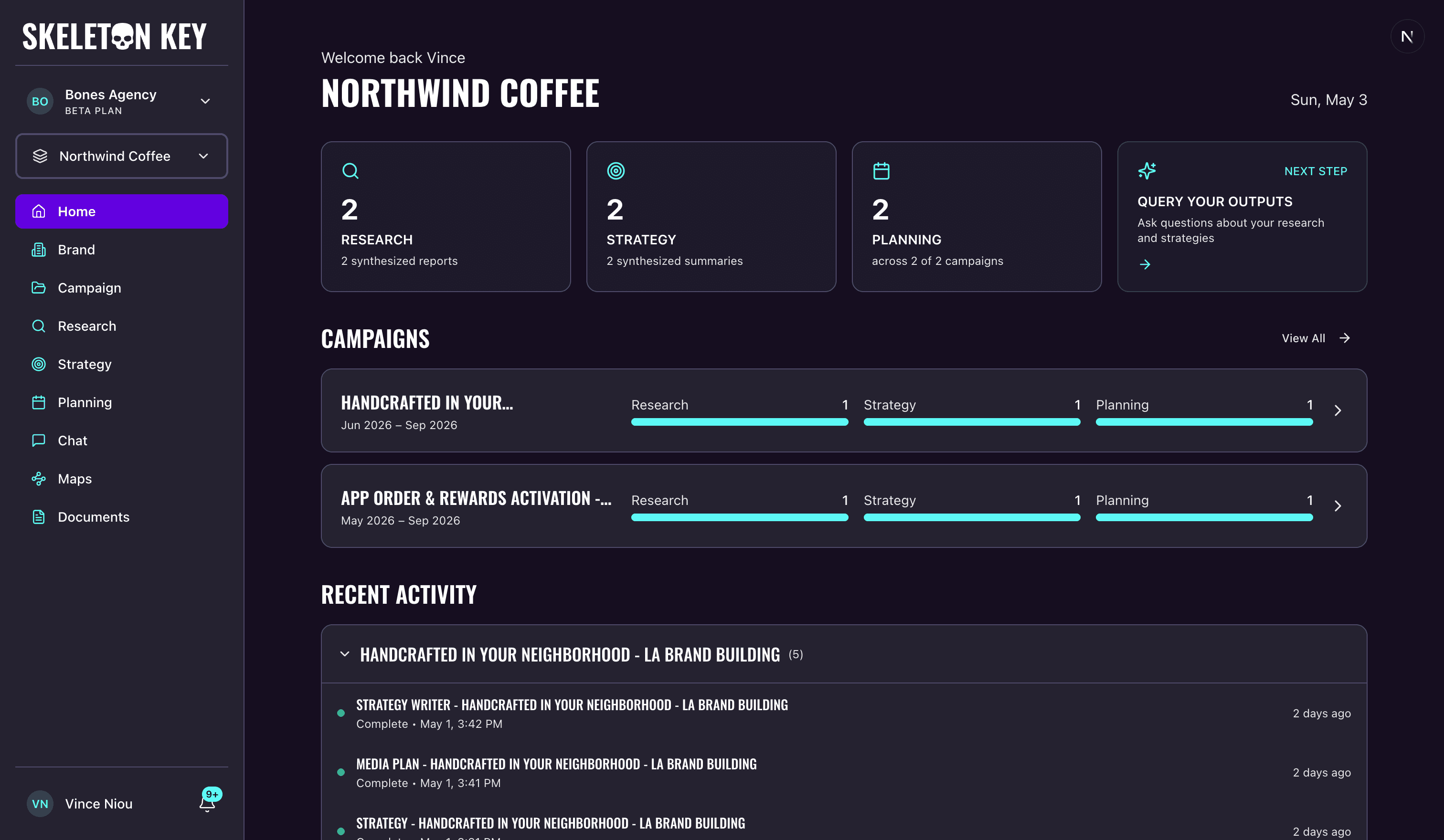
Home is what you land on after signing in. The dashboard reflects whichever brand is active in the brand selector at the top of the sidebar; switching the brand swaps the dashboard over.
What's on the page
Four cards sit at the top: counts of completed Research, Strategy, and Planning work for the brand, plus a Next Step card pointing to a suggested next action. The Research, Strategy, and Planning cards turn yellow when something in that area is running, red when something has failed. Each card is a link.
Below the cards, the Campaigns section shows up to five of your campaigns ordered by most recent activity, each with name, date range, and progress bars for Research, Strategy, and Planning. View All opens the full Campaigns page.
Below Campaigns, the Recent Activity feed groups runs by campaign, with a separate Brand Level group for work that isn't campaign-scoped (Brand Profile generation, brand-level Research, Marketing Mix Model runs). Each entry shows the run name, status, time, and any attached documents.
What new users see
Before you create your first Brand, Home shows a welcome screen instead of the dashboard. There's a Welcome to Skeleton Key heading, a button to create your first brand, and three short descriptions of Research, Strategy, and Planning. Once the Brand Profiler finishes, the dashboard takes over.
Limits and considerations
- No brand access. If your organization has brands but you don't have access to any of them, Home shows a "No Brand Access" message asking you to talk to an organization admin.
- Up to five campaigns shown. The Campaigns section on Home shows your five most recently active campaigns. The full list, including archived campaigns, lives on the Campaigns page.
- Recent activity is a short window. For older runs, open the relevant phase page (Research, Strategy, Planning) and use its history.
Last updated: 2026-07-12