

Documents
Per-brand document repository. Upload PDFs, Word files, Markdown, CSVs, and Excel sheets, then attach them as context when running the Brand Profiler, Research, Strategy, or Media Plan.
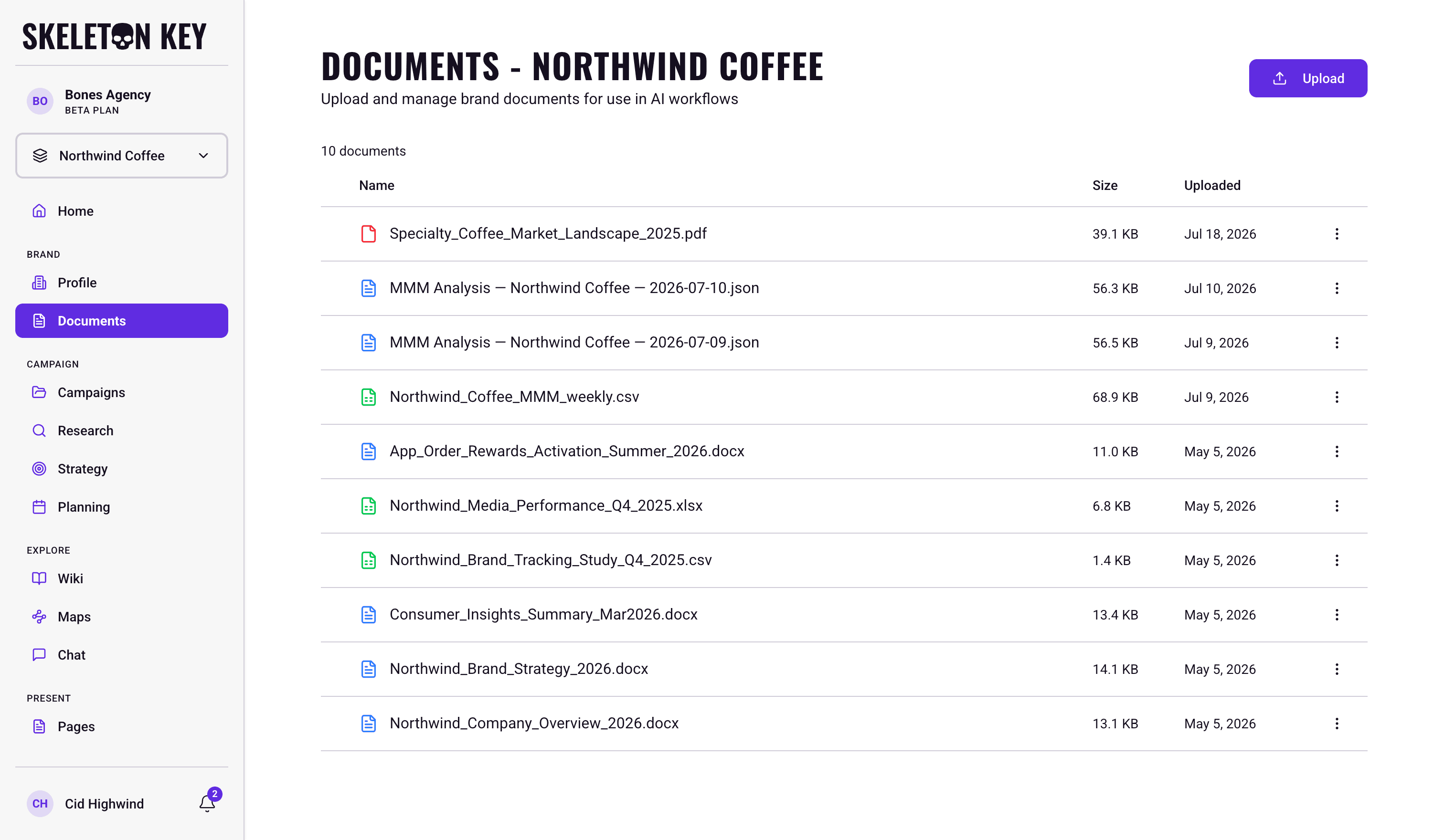
Documents is the file store for a Brand. Upload reference material once, then pull it into any Brand Profiler, Research, Strategy, or Media Plan run without re-uploading each time.
What it does
Each Brand has its own isolated document library. Files stay until you delete them, regardless of how many runs come and go. This is different from the brief upload in the Campaign form, which is a one-shot extraction. Documents is persistent storage you can reference across multiple runs.
Accepted formats: PDF, DOCX, XLSX, CSV, and MD. Each file must be under 10 MB.
Where to find it
Under Brand in the sidebar, click Documents. The page shows the library for the currently active Brand. Switching the brand selector loads a different library. A Brand Profile must exist before Documents is accessible. If you haven't run the Brand Profiler yet, the page shows a guard.
Viewer-role accounts can view and download documents, but cannot upload, rename, or delete.
How it works
Click Upload (top right) or drag files onto the page. Uploads run one at a time, and a progress panel in the bottom-right tracks each file's status. If a file fails, a retry button appears there.
If a dropped file has the same name as an existing document, a dialog asks whether to replace or keep both. Choosing "keep both" renames the incoming file automatically (e.g., category-trends-2026 (1).pdf).
When you start a Brand Profiler, Research, Strategy, or Media Plan run, a document selector appears at the dispatch point. Documents are opt-in per run. Selecting a file makes it part of that run's reading of your documents, and nothing is attached unless you pick it. A rerun or a refine reuses the same selection. To read different documents, start a new run.
Standing rules set on the Guidelines page take precedence over anything in an attached document when the two conflict. See Guidelines.
How a run reads your documents
A run reads your selected documents once, and every agent in that run works from that same reading. A rerun with the same files reuses it rather than reading them again. Tables in Word documents are read as tables. A run reads up to about 600,000 characters of text across everything you attached to it. Go past that and each file is trimmed proportionally. The run's page then shows a banner saying roughly how much of each document was read, for example "consumer-survey-2026.pdf": about 83% of this document was read. If the check itself is unavailable, a quieter line says the run could not confirm whether the documents were read in full.
A run can also stop before any agent starts work. That happens when a selected file has been deleted, when a file has no readable text (a scanned image, for example), or when the selection is so large that a file would be trimmed to almost nothing. The failure card explains the problem and names the affected files where it can. If the selection is too large, it lists the largest files so you can attach fewer or split them across runs. A temporary reading failure offers Rerun Agents on Research and Strategy. Media Plan has no rerun action, so there you start a new plan.
What you can adjust
Each document row has a three-dot menu (or right-click context menu) with three actions:
- Rename: changes the file's displayed name. If the save fails, the change reverts.
- Download: saves the file to your computer.
- Delete: permanently removes the file after a confirmation dialog.
Select multiple rows to use the bulk action bar at the bottom of the screen: download or delete all selected files at once.
Limits and considerations
- 10 MB per file. Files above this limit are rejected at validation before uploading starts.
- Five formats only. PDF, DOCX, XLSX, CSV, and MD are accepted. Other extensions (including
.doc,.txt,.png, and.pptx) are blocked. - One run reads about 600,000 characters of document text in total. Above that, files are trimmed and the run's page says how much of each was read. See "How a run reads your documents" above.
- Deletion is permanent. There is no trash or restore. A completed run keeps its record, but rerunning it with a deleted file attached stops and asks you to pick the documents again. Deleting a file also removes the claims the Wiki compiled from it. Renaming a file is safe: notices show the current name for files that still exist.
- Documents page requires a Brand Profile. If the Brand Profiler hasn't run yet, the page shows a guard prompting you to complete Brand setup first.
- No folder structure. All files for a Brand sit in a flat list, so use descriptive filenames to stay organized.
Last updated: 2026-11-03